If you're reading this post is because you've heard a little bit about Google+ and of course you want to know more. After all it's a Google product, right?
Well I've compiled a series of videos that will give you quick look at the different features offered in Google+ such as Circles, Hangouts, Sparks, and Instant upload.
The New Google Social Network-- Google+ Project -- Why It will be a Success??
The Google+ project: Explore Settings
The Google+ project: Explore Hangouts
The Google+ project: Circles
The Google+ project: Explore Sparks
The Google+ project: Explore Mobile
I personally can't wait to beta test it, hopefully I get my invite soon. I'm especially looking forward to Hangouts, what about you?
Do you see yourself using Google+ in the future, or will Facebook continue to dominate your social network world?
June 29, 2011
More than you want to know about Google+ or is it?
Labels:
circles,
facebook,
google plus,
google+,
hangouts,
huddle,
instant upload,
social network,
sparks
May 02, 2011
FAQ: How to appear offline for specific Friend Lists on Facebook Chat
By now almost everyone knows how to show themselves offline to all their friends, but do you know how to do that for a specific friend list? Yup! You can do that.
Before I show you how, let's first set it up so you can hide and unhide yourself at any given moment. These few clicks will lessen the steps for you later.
Let's add the Friend Lists in your Chat window:
1. Click Chat.
2. Click Friend Lists.
3. Click the list you want to make available in the chat window. Do this for all your Friend Lists.
Now to make yourself available or unavailable you just click the moon icon corresponding to the Friend List you want to make yourself available or unavailable too. The moon icon will change to green when you're online for that list.
So you see, it's just a few clicks and viola! You're hidden from stalker! JK :)
From here on, all you need to do is click the moon icon corresponding to the Friend List you want to talk too or hide yourself from. Not bad, huh?
What other tips would you like to know about Facebook Chat? Let us know in the comment section.
Before I show you how, let's first set it up so you can hide and unhide yourself at any given moment. These few clicks will lessen the steps for you later.
Let's add the Friend Lists in your Chat window:
1. Click Chat.
2. Click Friend Lists.
So you see, it's just a few clicks and viola! You're hidden from stalker! JK :)
From here on, all you need to do is click the moon icon corresponding to the Friend List you want to talk too or hide yourself from. Not bad, huh?
What other tips would you like to know about Facebook Chat? Let us know in the comment section.
Labels:
chat,
facebook,
friend lists,
offline,
privacy settings,
social media
February 16, 2011
FAQ: How to find the Facebook pages my friends and I have liked
With all the Facebook changes going on have you noticed that the pages you've liked are no longer listed as they were in the Info section? Well look no further.... I have the solution to not only find the pages you've liked but also the pages you have in common with your friends.
To find the pages you've liked, search for Pages and select Facebook Pages from the results.
You'll be taken to the Facebook Pages Home Page. All you have to do is click My Pages on the top right corner of the page to access the pages you've liked.
The list of the pages you've liked will be displayed, just scroll to view more.
From the Facebook Pages Home Page you'll see on the right side the pages you have in common with your friends.
Just click on the xx mutual likes link to the right of their name to view the pages you have in common.
Pretty cool, right? Hope this tip helps you because I know several of my friends have been asking for this so I figured other Facebook members would probably want to know.
It's funny how I'm writing about changes and as I finished writing this post I had to redo two screen captures because of more changes, oh well they certainly keep us on our toes.
What other tips would you like to know? Tell us in the comment section.
In the meantime don't forget to check out the rest of my Facebook tips.
February 11, 2011
Social Media Humor: Daddy how was I born?
A little boy goes to his father and asks "Daddy, how was I born?"
The father Answers, "well son, I guess one day you will need to find out anyway".
Your Mom and I first got together in a chat room on Yahoo. Afterwards I set up a date via e-mail with your Mom and we met at a cyber-cafe. We Sneaked into a secluded room, and Googled each other.
There your mother agreed to a download from my hard drive. As soon as I was ready to upload, we discovered that neither one of us had used a firewall, and since it was too late to hit the delete button, nine months later a little Pop-Up window appeared that said:
You Got Male!
The father Answers, "well son, I guess one day you will need to find out anyway".
Your Mom and I first got together in a chat room on Yahoo. Afterwards I set up a date via e-mail with your Mom and we met at a cyber-cafe. We Sneaked into a secluded room, and Googled each other.
There your mother agreed to a download from my hard drive. As soon as I was ready to upload, we discovered that neither one of us had used a firewall, and since it was too late to hit the delete button, nine months later a little Pop-Up window appeared that said:
You Got Male!
Labels:
chat room,
email,
firewall,
google,
how top 100 companies are using social media,
tech humor,
yahoo
January 29, 2011
App Review: Avoid crashing into obstacles while you type with this iPhone app - Type and Walk
If you're reading this article it's because you're a text addict and need some help. Don't we all? Well in order to avoid falling into a water fountain like our friend in this video I suggest you read on.
Although we shouldn't really be typing and not looking where we're going there is a very cool workaround that will help you avoid getting injured if you're an iPhone user.
The Type and Walk - Presselite app displays what's in front of you as you're walking helping you avoid crashing into poles or falling into fountains :O)
Let's take a look.
As soon as you open the app, you'll see at the top of the display a mirror image of the obstacles in front of you and all you have to do is tap that big area and start typing.
After you're done tap the arrow on the top right corner.
Then tap Send.
From here you have the option to either delete the text, or send it to Facebook, to an e-mail address, copy it, or copy and text it. You also have the option to change the colors or tab Rotate at the top left to view in landscape mode.
The sending options are very simple and work the same way as any e-mail, Facebook, copy or texting functionality on the iPhone but I'll show you how it works for texting. That's probably why you're reading this post anyways, right?
If you tap the Copy & Texting option the Messages app is opened automatically.
All you need to do from here is paste the text, add the recipient, and tab Send.
This can't get more simple than that and less hurtful too. Right now the app is $0.99 and I think it's well worth it. Just think of the serious injuries and hospital bills you can avoid by spending less than 1 dollar.

Hope this review helps you stay bruise free if not, there is nothing else I can do, sorry :O(
Have you used this app? Tell us your experience or what injuries you have avoided in the comment section.
Although we shouldn't really be typing and not looking where we're going there is a very cool workaround that will help you avoid getting injured if you're an iPhone user.
The Type and Walk - Presselite app displays what's in front of you as you're walking helping you avoid crashing into poles or falling into fountains :O)
Let's take a look.
As soon as you open the app, you'll see at the top of the display a mirror image of the obstacles in front of you and all you have to do is tap that big area and start typing.
After you're done tap the arrow on the top right corner.
Then tap Send.
From here you have the option to either delete the text, or send it to Facebook, to an e-mail address, copy it, or copy and text it. You also have the option to change the colors or tab Rotate at the top left to view in landscape mode.
The sending options are very simple and work the same way as any e-mail, Facebook, copy or texting functionality on the iPhone but I'll show you how it works for texting. That's probably why you're reading this post anyways, right?
If you tap the Copy & Texting option the Messages app is opened automatically.
All you need to do from here is paste the text, add the recipient, and tab Send.
This can't get more simple than that and less hurtful too. Right now the app is $0.99 and I think it's well worth it. Just think of the serious injuries and hospital bills you can avoid by spending less than 1 dollar.

Hope this review helps you stay bruise free if not, there is nothing else I can do, sorry :O(
Have you used this app? Tell us your experience or what injuries you have avoided in the comment section.
Labels:
apple iphone,
avoid obstacles,
iphone,
text messaging,
type and walk
January 11, 2011
FAQ: How can I view the links I've posted on Facebook?
As the new Facebook profile page design is rolling out to everyone so are lots of questions on where to find things on the profile. One of them is how can I view the links that I've posted on Facebook in the past?
This information used to be accessible from the Home page but now it's no longer visible to the human eye on your profile, and is it gone forever? The answer is no. Facebook may not make it visible on your profile but you can still view the past links you've shared with your friends.
To view your links:
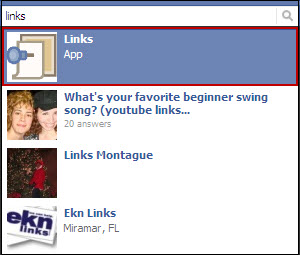
1. Type the word links in the Search field on the top of your profile.

2. Click the Links app.
The page by default displays your friends' links.
3. Click My Links on the left side bar to view your links.

Although I'm not too happy with this workaround at least we can still view the information.
Did this help you? Tell us in the comment section below. Also if you need to know how to find anything else in the new profile let us know. It may just be our next blog post.
-------------------------------
Update April 2013
With the new timeline the steps I provide in my post don't work anymore. I don't want to delete the post because I want to keep track of this functionality and later be able to provide you with another workaround to find your links.
In the meantime, if you click on Activity log under your cover, then on Your Posts on the left menu you will be able to see the links. The disadvantage is that this will display all your posts not only the links you've shared. If I find another quicker way I will post it here.
This information used to be accessible from the Home page but now it's no longer visible to the human eye on your profile, and is it gone forever? The answer is no. Facebook may not make it visible on your profile but you can still view the past links you've shared with your friends.
To view your links:
1. Type the word links in the Search field on the top of your profile.

2. Click the Links app.
The page by default displays your friends' links.
3. Click My Links on the left side bar to view your links.

Although I'm not too happy with this workaround at least we can still view the information.
Did this help you? Tell us in the comment section below. Also if you need to know how to find anything else in the new profile let us know. It may just be our next blog post.
-------------------------------
Update April 2013
With the new timeline the steps I provide in my post don't work anymore. I don't want to delete the post because I want to keep track of this functionality and later be able to provide you with another workaround to find your links.
In the meantime, if you click on Activity log under your cover, then on Your Posts on the left menu you will be able to see the links. The disadvantage is that this will display all your posts not only the links you've shared. If I find another quicker way I will post it here.
Labels:
facebook,
new design,
profiles,
social media,
social network
November 16, 2010
iPhone Tip: How to access your Privacy and Account settings on the Facebook iPhone app
If you haven't downloaded the latest Facebook iPhone app update I would suggest you do. Why you ask? Because now you can access and update your Privacy and Account settings through the app. What a concept?
Don't know why this took so long but hey now it's here.
To access these settings tap Account. This is where you use to just logout from Facebook.

Then tap either Account Settings or Privacy Settings to update the information.
You are then taken to the same page you see when you access this information from the Facebook web site.
Did this tip help? Let us know in the comment section. You can also request tips via the comment section or share our tips with others by using our Share or Tweet buttons.
Don't know why this took so long but hey now it's here.
To access these settings tap Account. This is where you use to just logout from Facebook.
Then tap either Account Settings or Privacy Settings to update the information.
You are then taken to the same page you see when you access this information from the Facebook web site.
Did this tip help? Let us know in the comment section. You can also request tips via the comment section or share our tips with others by using our Share or Tweet buttons.
Labels:
account settings,
facebook,
iphone app,
privacy settings
November 06, 2010
FAQ: What is a Facebook Friendship Page?
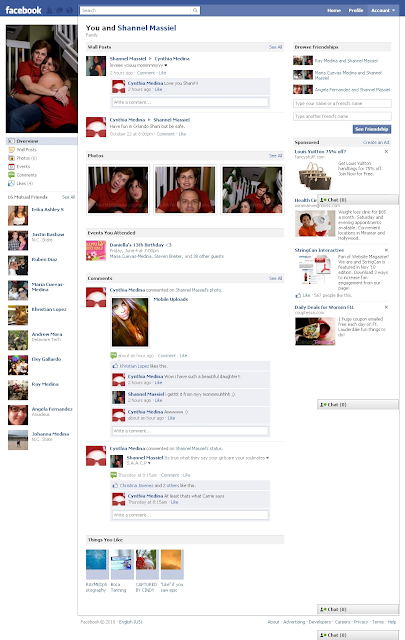
Have you ever wondered how many things you share with a friend? Like comments, events, or photos? Well the Friendship page helps you summarize all that.
You can display a Friendship page between you and a friend and see your mutual events, wall posts, comments, photos you're tagged in, friends, and even which pages you both like.
It's like summarizing your relationship.
To display a Friendship page:
1. Visit a Friend's page.
2. Click the View You and xxxxxx link (xxxxxx=friend's name) under their profile picture.

And voila!
Facebook summarizes your friendship in just seconds.

Also from that page you can browse mutual friend's Friendship pages or other friendship pages between and another friend.

If you don't see a link under a friend's profile picture, click the Filters link on their wall.

And then click the Friendship Page link.

What do you think about this new feature? Tell us in the comment section below.
You can display a Friendship page between you and a friend and see your mutual events, wall posts, comments, photos you're tagged in, friends, and even which pages you both like.
It's like summarizing your relationship.
To display a Friendship page:
1. Visit a Friend's page.
2. Click the View You and xxxxxx link (xxxxxx=friend's name) under their profile picture.

And voila!
Facebook summarizes your friendship in just seconds.

Also from that page you can browse mutual friend's Friendship pages or other friendship pages between and another friend.

If you don't see a link under a friend's profile picture, click the Filters link on their wall.

And then click the Friendship Page link.

What do you think about this new feature? Tell us in the comment section below.
Labels:
facebook,
friendship pages
Subscribe to:
Posts (Atom)