Showing posts with label facebook. Show all posts

February 21, 2015

FAQ: How do I turn off the sounds for Facebook in the mobile app?

If you noticed, after recently upgrading your Facebook mobile app you now have some annoying sounds every time you refresh your feed, post or interact in other activities. 

As always these are preferences you can manage and turn on, or off depending on your liking. If you have an iPhone, follow these steps to turn them off:

1. Navigate to the Settings area in your mobile app.
2. Tap Settings.
3. Tap Sounds.
4. Slide to turn off In-App Sound.

From an Android do the following:

1. Go to the three-lined icon at the top right.
2. App Settings
3. Sounds
4. Slide it off.


And in those simple steps you have a soundless app again :)

What else would you like to know about any app or social channel? Let me know in the comment section, who knows your question may generate my next post. 


October 19, 2011

FAQ: Can I unfollow a post on Facebook to stop notifications?

Yes, you can. You can unfollow statuses, photos, videos, links, and I think pretty much anything else. The trick is that you won't see the Unfollow Post from the wall (pretty soon called timeline). You have to access just that piece of information to see it, and with that I mean if it's something like a photo or video you'll need to click on it to display it.

If it's a link or status you'll need to click on the notification.
.

You'll then see the Unfollow Post link like in this example:

What I've noticed though is that you either have to be the person who posted the information or you've left a comment on someone else's post in order to see the Unfollow Post. Oh and don't worry, if you ever want to reverse the action you can always go back to the post and click Follow Post.

Now since in Facebook several things work together, if you still see notifications for things you've unfollowed, check your notification settings.

Hope this little tip helps in cutting down the notifications on those pesky post. Let me know what else you would like to know in the comment section.


September 19, 2011

How To: Are you getting bombarded with notifications on Facebook updates? Check out why!

You probably are and that's because Facebook just launched a couple of days ago a new subscription feature available for personal profiles that let's you subscribe to your friends updates. When you subscribe to updates you are actually deciding what information is shown on your newsfeed for each friend. Unfortunately when they turned this feature on you ended up subscribed to a slew of friend's which is now causing a slew of notifications.
So now it's up to you to decide what information you want to view on your newsfeed, and subscribe or unsubscribe. Just keep in mind, if you unsubscribe to a friend you won't see any updates on your newsfeed.
Here's how you can update your subscriptions:
1. Click Subscriptions.

2. Click Friend Subscriptions.


3. Click Subscribed.

4. Checkmark how many updates you want to view. 

  • All updates: Like word says ALL your friend posts
  • Most updates:  Equivalent to what you see today
  • Important updates only: Stuff like new job, or move

5. Checkmark or uncheck the kind of updates you want to view (status, life events, photos and videos, comments and likes, or other activities).

If you don't want to see any updates for certain friends then select Unsubscribe.

Hope this helps you! Let us know what else you would like to know about Facebook in the comment section.


June 29, 2011

More than you want to know about Google+ or is it?

If you're reading this post is because you've heard a little bit about Google+ and of course you want to know more. After all it's a Google product, right?

Well I've compiled a series of videos that will give you quick look at the different features offered in Google+ such as Circles, Hangouts, Sparks, and Instant upload.


The New Google Social Network-- Google+ Project -- Why It will be a Success??

The Google+ project: Explore Settings


The Google+ project: Explore Hangouts

The Google+ project: Circles

The Google+ project: Explore Sparks


The Google+ project: Explore Mobile

I personally can't wait to beta test it, hopefully I get my invite soon. I'm especially looking forward to Hangouts, what about you?

Do you see yourself using Google+ in the future, or will Facebook continue to dominate your social network world?


May 02, 2011

FAQ: How to appear offline for specific Friend Lists on Facebook Chat

By now almost everyone knows how to show themselves offline to all their friends, but do you know how to do that for a specific friend list? Yup! You can do that.

Before I show you how, let's first set it up so you can hide and unhide yourself at any given moment. These few clicks will lessen the steps for you later.


Let's add the Friend Lists in your Chat window:


1. Click Chat.
2. Click Friend Lists.


3. Click the list you want to make available in the chat window. Do this for all your Friend Lists.


Now to make yourself available or unavailable you just click the moon icon corresponding to the Friend List you want to make yourself available or unavailable too. The moon icon will change to green when you're online for that list.


So you see, it's just a few clicks and viola! You're hidden from stalker! JK :)


From here on, all you need to do is click the moon icon corresponding to the Friend List you want to talk too or hide yourself from. Not bad, huh?


What other tips would you like to know about Facebook Chat? Let us know in the comment section.


Share/Save/Bookmark

February 16, 2011

FAQ: How to find the Facebook pages my friends and I have liked

With all the Facebook changes going on have you noticed that the pages you've liked are no longer listed as they were in the Info section? Well look no further.... I have the solution to not only find the pages you've liked but also the pages you have in common with your friends.


To find the pages you've liked, search for Pages and select Facebook Pages from the results.


You'll be taken to the Facebook Pages Home Page. All you have to do is click My Pages on the top right corner of the page to access the pages you've liked.


The list of the pages you've liked will be displayed, just scroll to view more.


From the Facebook Pages Home Page you'll see on the right side the pages you have in common with your friends.


Just click on the xx mutual likes link to the right of their name to view the pages you have in common.


Pretty cool, right? Hope this tip helps you because I know several of my friends have been asking for this so I figured other Facebook members would probably want to know.

It's funny how I'm writing about changes and as I finished writing this post I had to redo two screen captures because of more changes, oh well they certainly keep us on our toes.


What other tips would you like to know? Tell us in the comment section.

In the meantime don't forget to check out the rest of my Facebook tips.


January 11, 2011

FAQ: How can I view the links I've posted on Facebook?

As the new Facebook profile page design is rolling out to everyone so are lots of questions on where to find things on the profile. One of them is how can I view the links that I've posted on Facebook in the past?

This information used to be accessible from the Home page but now it's no longer visible to the human eye on your profile, and is it gone forever? The answer is no. Facebook may not make it visible on your profile but you can still view the past links you've shared with your friends.

To view your links:

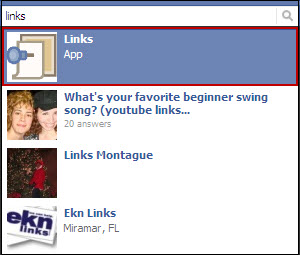
1. Type the word links in the Search field on the top of your profile.


2. Click the Links app.

The page by default displays your friends' links.

3. Click My Links on the left side bar to view your links.


Although I'm not too happy with this workaround at least we can still view the information.

Did this help you? Tell us in the comment section below. Also if you need to know how to find anything else in the new profile let us know. It may just be our next blog post.

-------------------------------
Update April 2013

With the new timeline the steps I provide in my post don't work anymore. I don't want to delete the post because I want to keep track of this functionality and later be able to provide you with another workaround to find your links.

In the meantime, if you click on Activity log under your cover, then on Your Posts on the left menu you will be able to see the links. The disadvantage is that this will display all your posts not only the links you've shared. If I find another quicker way I will post it here.


November 16, 2010

iPhone Tip: How to access your Privacy and Account settings on the Facebook iPhone app

If you haven't downloaded the latest Facebook iPhone app update I would suggest you do. Why you ask? Because now you can access and update your Privacy and Account settings through the app. What a concept?

Don't know why this took so long but hey now it's here.

To access these settings tap Account. This is where you use to just logout from Facebook. 


Then tap either Account Settings or Privacy Settings to update the information.

You are then taken to the same page you see when you access this information from the Facebook web site.

Did this tip help? Let us know in the comment section. You can also request tips via the comment section or share our tips with others by using our Share or Tweet buttons.


November 06, 2010

FAQ: What is a Facebook Friendship Page?

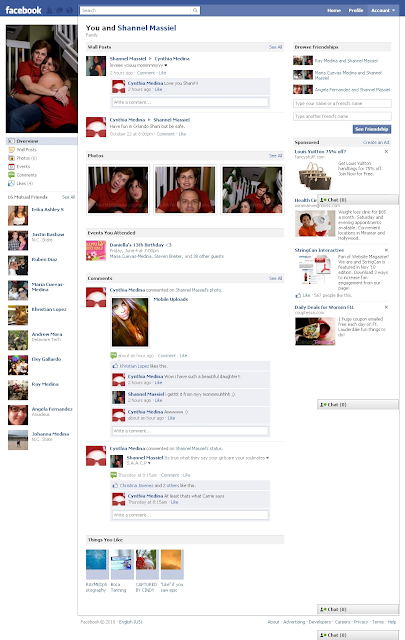
Have you ever wondered how many things you share with a friend? Like comments, events, or photos? Well the Friendship page helps you summarize all that.

You can display a Friendship page between you and a friend and see your mutual events, wall posts, comments, photos you're tagged in, friends, and even which pages you both like.

It's like summarizing your relationship.

To display a Friendship page:

1. Visit a Friend's page.
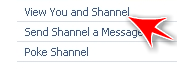
2. Click the View You and xxxxxx link (xxxxxx=friend's name) under their profile picture.


And voila!

Facebook summarizes your friendship in just seconds.


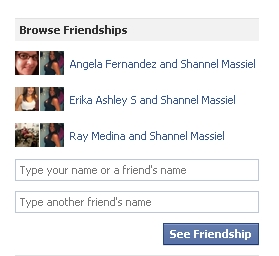
Also from that page you can browse mutual friend's Friendship pages or other friendship pages between and another friend.


If you don't see a link under a friend's profile picture, click the Filters link on their wall.


And then click the Friendship Page link.


What do you think about this new feature? Tell us in the comment section below.


October 18, 2010

FAQ: How can I hide the photos and videos my friends tag me in on Facebook?

Yes, you can and it's not a bad idea to do that. You never know what photo will surface from your past and you probably don't want your family, friends or coworkers seeing those crazy days, right?

What you can do is apply privacy settings to your profile in order for these photos to only be visible to you, specific people or a list of friends. It depends on how restricted you want it.

To do this:

1. Click Account.
2. Select Privacy Settings.
3. Click on Customize Settings.


4. Scroll down to the Things others share section.
5. Click the pull-down menu next to Photos and videos I'm tagged in.


6. Select Custom.
7. Select Specific People to let only some people see these photos or videos.


You can also select Only Me, if you don't want anyone except yourself seeing photos or videos you're tagged in.

8. If you select Specific People then enter their names in the field below the pull-down menu. if you use Friend lists you can type in the name of the list to allow a group of people to view it.
9. Click Save Setting.


You can do the reverse as well. If you don't mind most of your friends to be able to see the photos and videos you're tagged in then you can select the people you want to hide information from.

To do that enter the names or friend list in These people: field under "Hide this from".


And that's it, from here on only those people will see any photos or videos you're tagged on.

Let me know if that helped in the comment section below.


October 05, 2010

How To: How to personalize your Facebook Profile link with a customized username

Do you remember when Facebook launched "claim your username"? If not, and you missed it you can still claim your username to make your Facebook profile page URL more friendly and easy to remember. A lot of people ask me why should they claim their username, and this is the best way I can explain it. 


Well you really don't need a username but it's a nice to have for the following reasons.
  1. You have a more personalized URL that you can give out to your friends or publish on your social site's pages or website.
  2. A personalized URL gets you more noticed and you're easier to find. If you have a business or want to get noticed, this is something you would want. You get your brand noticed easier and quicker.
  3. It avoids online identify theft. If you don't claim your name some one else will. Just think about it, if people find you in search engines wouldn't you want the information found to be written or owned by you rather than by some one pretending to be you? That's why having blogs, web sites, and social site profiles are not a bad thing, they give you the opportunity to have a online identity and represent yourself.
It's recommended you select your actual name. Remember you don't want anyone pretending to be you, right? So you see, it's not just about having a username, it's about having a presence.


Now let's get to the good stuff, to claim your username:

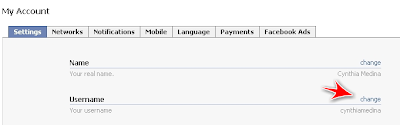
1. Click Account and select Account Settings.
2. Click Change under Username.


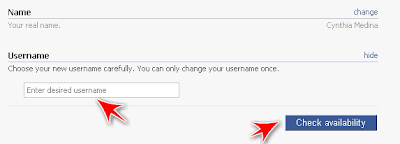
3. Enter the username of your choice.


Remember this is going to be the URL for your Facebook profile page, for example: http://www.facebook.com/username. Doesn't that beat having a URL like this;http://www.facebook.com/profile.php?id=1337590867


4. Click Check availability button to check if that username is available.
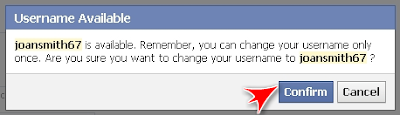
5. Click Confirm if you want to keep this username.


Just keep in mind you can only change it once so think about it before clicking confirm. After you click confirm you will no longer see the Username option under Account Settings.


If you ever forget your username just click the link at the top right of your profile page and it will display your URL in the address bar. Your username are the characters after the slash (/).


Simple right?


My Facebook URL is http://www.facebook.com/cynthiamedina. 

What's yours? Tell us in the comment section.

June 03, 2010

FAQ: How do I make my Facebook Friends List private?

This use to be as simple as clicking on the little pencil on the Friends box on your profile but after all the latest Facebook privacy changes this too has changed. But not too worry, it's very simple.

If you don't want your friends list to be visible to everyone or even your friends you can choose to make them only visible to you. After all you don't want to hurt any one's feelings if they don't like the friend list they are currently in, right?

So to change the settings:

1. Click  Account > Privacy Settings.

2. Click View settings link under Basic Directory Information.

3. Select Customize under the section "See my friend list".


4. From the pull-down menu under "Make this visible to" section Only me.


5. Click Save Setting.

Did this help? Let us know in the comment section below.


Share/Save/Bookmark

May 16, 2010

Have you checked the privacy settings in the Facebook applications lately?

Everyone has been so worried about all the changes Facebook has done with the privacy settings but I don't think anyone is looking at the privacy settings in the applications themselves.

I'm talking about the applications where you fill out surveys, play games, and so many other things. These apps have privacy settings and by default they are set to allow "Everyone" to see your information.

Now I'm not saying letting everyone see your survey results is a bad thing but if you're concerned with your privacy this is another place you should look at.

To change the app settings go to Account > Application Settings and click the Edit Settings that corresponds to each app.

Do this for every app. If you're someone that spends to much time playing stuff on Facebook then you'll have lots of apps to update.

If you app list is just to big and filled with apps you don't use I would suggest you first change the privacy settings of all the apps and then click the X to delete the ones you don't use. Remember, even though you delete things from the web it doesn't mean it will disappear :O(

Does this post help you? Let us know in the comment section below.


Share/Save/Bookmark

March 12, 2010

I just like to share information, seriously!

It's funny how when people feel threatened by technology they always try to make up excuses why they shouldn't use it. This happens a lot with social networks. If you're technology challenged you shouldn't feel bad, this just means you're probably good at something else. All you should do is embrace and accept your challenge with an open mind. Give things time and if it's still not for you then great.... stop using it but don't covering it up with excuses like "I don't use Facebook because I don't want people seeing my information” or “I like to keep my personal life private”. Just accept that you don't understand them and ask for help or just move on.

Instead of criticizing those that like to share on sites like Facebook and Twitter, just cancel your account and keep your opinions to yourself. Just because you don't understand how to use these sites or why people enjoy sharing doesn't give anyone the right to criticize those that do.

Hey if I'm not good with math does that mean I should criticize accountants, NOT!

All I hear is... so and so shares too much information, so and so is always on Facebook, Only egotistical people use Twitter.... OK, I've had enough!

I think it's time to clear the air.

Even though it seems hard to believe that people are just genuine with no hidden agenda, and the only reward they get out of sharing is a feeling of personal satisfaction, that is the truth.

There are still good people out there that like to help others without expecting anything in return. I personally love to see the light bulb turn on after I teach someone how to do something. I also enjoy seeing how people start getting curious and start doing things on their own. Call me crazy but maybe that's why I'm in the Training field.

I've personally learned and continue to learn from the people I follow on social networks and especially Twitter. Maybe if these people would be more opened to these sites they would learn a thing or two. And I'm not even getting into how much more productive I feel by using these sites and yes, my iPhone apps as well. I can surely bet I'm at least 50% more productive just because of my iPhone.

Yes, there are people out there that are full of themselves but these kinds of people exist every where and in every field not only technology.

So before you start criticizing people, do yourself a favor and educate yourself.

This post was not intended to offend anyone. This was more of a venting post as I'm just a little tired of feeling like I need to explain why I like to use sites like Facebook, Twitter and my apps.

What's your opinion on this?


Share/Save/Bookmark

January 23, 2010

Having some image displaying problems

If you've visited my blog lately to read my articles you've probably noticed the images in the articles are not displaying. My images are hosted on a separate servers and unfortunately the hosting company has been down for some time.

I've been trying to contact them, but unfortunately their web site is down, and their blog does not have any contact information.

I'm very sorry for the inconvenience, rest assure I'm trying to resolve the problem asap. I'll be posting an update when everything is restored.


December 11, 2009

Review: Do you find Facebook too complicated? Then try Facebook Lite
Facebook released a more simpler version of their existing site called Facebook Lite. A public preview is available to those that already have a Facebook account and that use the English (US) version. You can take a look at Facebook Lite but before you do read on so you know what to expect.

Now remember lite means that you won't have all the features available in the regular Facebook site but if you're a person that only wants to read the latest status, share pictures and videos then this version is for you.

Before I continue I would like to add that I've erased the photos and names of my friends on the screen captures to protect the innocent :O) Just because I want to share information with the general public doesn't mean they want to share their lives with everyone, right?

So here goes my quick overview of the site, hope this helps.

Let's start by saying that after you log in your default page is still what we call the Home page in the regular Facebook so that hasn't changed. With that said, let's look at the features that have changed starting with the top navigation.


Facebook logo

It's just not a logo, it's the only way you get back to your Home page. So remember this important detail or else you will have no clue how to view all your friend's gossip.

Profile

Through this link you can view and update your profile.

Events

Shows you the latest events. So if some one sends you an invite to an event or it's some one's birthday then this is where you would go to check it out.

Chat

No more chat at the bottom right side of the page, it's right at the top. When you click Chat a new window opens which looks slightly different then the chat in the regular Facebook. As you can see you still have the Friend List and Options feature at the top of the chat.


Below this information you will see the various friend lists and your friends. To chat with a friend just click their name, and a new field at the bottom right of the window will appear where you can type your message so the functionality hasn't changed.

By the way if you see a dark dot next to the Chat link on the top navigation that means you're offline.

Inbox

The major difference here is that you don't have the option to delete a message from your inbox by clicking the X next to the subject. You need to view the message and then click Delete.

Settings icon
By clicking the icon you access the privacy settings and account information. This is another important section to remember as you can switch back to the regular Facebook site through here (see Changing your Default Site section below).

Door icon

The icon is used to log out.


Home Page

This page is very clean and simple. Remember how I mentioned this was a simpler version, well
here you can see it.


In the middle of the page you'll see by default all your friend's and group stories and if you want to view only the top stories then you click View Top Stories. If there is any birthday occurring it will display in this section of the page as well.

To the right side of the page you will only see People you may know and the ad section. That's it! Simple right?

To update your status click Write, to add pictures click Post Photos, and to add videos click Post Video buttons. That's it! No notes, no links, no gifts....


Profile Page

The profile page is so simple to update that even a cave man can do it :O)

First notice that you don't have all the tabs at the top, and no side boxes either. All you have are the same three buttons from the Home Page and they work the same too. Under these buttons you'll have all your updates like you usually do.


Editing your profile

Under your profile picture you have the Wall, Info, Friends, and Photos & Video links. To update your profile picture or your information just click on Info and then Edit Profile link at the top of the page. You can toggle from the Basic and Favorite information sections by clicking the buttons.


One cool thing Facebook is doing is displaying tips on the right side of your profile on how to use Facebook Lite so keep your eyes opens.


To go back to your profile just click on your name.


Friends

To view all your friends click the Friends link under your profile picture. In the regular Facebook site your list of friends showed their current status and you had the option to send them a message but not in this version. All you can do from this list is to unfriend some one by clicking the X.


You can view the list of groups you're a fan of by clicking the Fan of link at the top of the page. By clicking the X you will unfan the group.... I wonder if that word will be added to the dictionary next year, hummmm.

Photos & Videos

Click the Photos and Videos link under your profile picture to view your photos and videos. The page is divided in three sections. The top section displays all the pictures you've been tagged on, the middle section displays all the videos you've been tagged on, and the bottom section displays all your photo albums.


You can't add photos and videos from this section. To add photos or videos remember to click
the Post Photos and Post Video buttons at the top of your profile or Home page. After that the process is the same. Now the tag, like and comment features on photos and videos are positioned differently, see below.


Changing your Default Site

If you decide you want to continue using Facebook Lite you can set this version as your default from the Settings sections. Once you access the Settings section click Default Site.


Select the default version, and click Save.


If you select Facebook Lite that means that every time you access http://www.facebook.com/ it will take you to Facebook Lite.

Also notice you can use both versions by selecting "Let me switch between Regular Facebook and Facebook Lite" option. When you select this option you will see on the top right corner of the page a link that says "Back to regular Facebook" or Try Facebook Lite depending on the version you're using at the moment.

In the Settings section you can also update your privacy settings, change your password, e-mail, and more.

I really like the lite version especially because I'm not a Farmville or Yoville person. If it wasn't for me using some applications that incorporate some more advance functionality I would use the Facebook Lite as my default. In the meantime, I've set my account to use both.

Just remember that with the launch of any new web site or new version of a web site things don't work 100% so things are going to go wrong. Just report them fast that way Facebook can correct them quicker.

Well that's my quick overview of Facebook Lite, have you used it? Share your thoughts in the comment section.


Share/Save/Bookmark