Showing posts with label profiles. Show all posts

January 11, 2011

FAQ: How can I view the links I've posted on Facebook?

As the new Facebook profile page design is rolling out to everyone so are lots of questions on where to find things on the profile. One of them is how can I view the links that I've posted on Facebook in the past?

This information used to be accessible from the Home page but now it's no longer visible to the human eye on your profile, and is it gone forever? The answer is no. Facebook may not make it visible on your profile but you can still view the past links you've shared with your friends.

To view your links:

1. Type the word links in the Search field on the top of your profile.
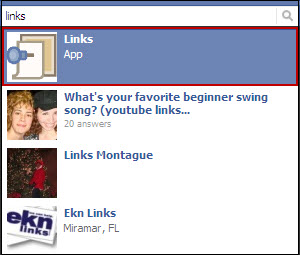


2. Click the Links app.

The page by default displays your friends' links.

3. Click My Links on the left side bar to view your links.


Although I'm not too happy with this workaround at least we can still view the information.

Did this help you? Tell us in the comment section below. Also if you need to know how to find anything else in the new profile let us know. It may just be our next blog post.

-------------------------------
Update April 2013

With the new timeline the steps I provide in my post don't work anymore. I don't want to delete the post because I want to keep track of this functionality and later be able to provide you with another workaround to find your links.

In the meantime, if you click on Activity log under your cover, then on Your Posts on the left menu you will be able to see the links. The disadvantage is that this will display all your posts not only the links you've shared. If I find another quicker way I will post it here.






October 05, 2010

How To: How to personalize your Facebook Profile link with a customized username

Do you remember when Facebook launched "claim your username"? If not, and you missed it you can still claim your username to make your Facebook profile page URL more friendly and easy to remember. A lot of people ask me why should they claim their username, and this is the best way I can explain it. 


Well you really don't need a username but it's a nice to have for the following reasons.
  1. You have a more personalized URL that you can give out to your friends or publish on your social site's pages or website.
  2. A personalized URL gets you more noticed and you're easier to find. If you have a business or want to get noticed, this is something you would want. You get your brand noticed easier and quicker.
  3. It avoids online identify theft. If you don't claim your name some one else will. Just think about it, if people find you in search engines wouldn't you want the information found to be written or owned by you rather than by some one pretending to be you? That's why having blogs, web sites, and social site profiles are not a bad thing, they give you the opportunity to have a online identity and represent yourself.
It's recommended you select your actual name. Remember you don't want anyone pretending to be you, right? So you see, it's not just about having a username, it's about having a presence.


Now let's get to the good stuff, to claim your username:

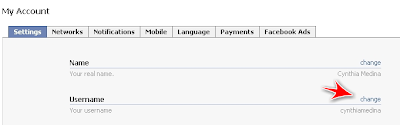
1. Click Account and select Account Settings.
2. Click Change under Username.


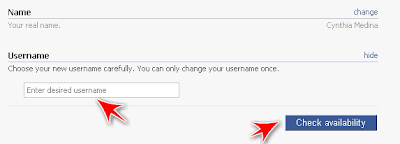
3. Enter the username of your choice.


Remember this is going to be the URL for your Facebook profile page, for example: http://www.facebook.com/username. Doesn't that beat having a URL like this;http://www.facebook.com/profile.php?id=1337590867


4. Click Check availability button to check if that username is available.
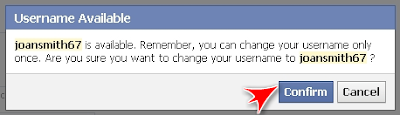
5. Click Confirm if you want to keep this username.


Just keep in mind you can only change it once so think about it before clicking confirm. After you click confirm you will no longer see the Username option under Account Settings.


If you ever forget your username just click the link at the top right of your profile page and it will display your URL in the address bar. Your username are the characters after the slash (/).


Simple right?


My Facebook URL is http://www.facebook.com/cynthiamedina. 

What's yours? Tell us in the comment section.

August 21, 2008

How to set up your own Social Network with Ning

Ning is an online platform that allows its users to create their own Social Network and join Social Networks created by other members within the site. This service is free and very easy to use. This online platform has pretty much the same features as other Social Networks such as MySpace and Facebook. Some of the features available are blogs, forums, groups, and of course you can add videos, photos, widgets and profile customization. By creating your own Social Network you can build an online community of people who share the same interests and activities, or who are interested in exploring the interests and activities of others.

You can use it to:

  • Engage coworkers, friends, and family
  • Connect to other departments within your organization and globally
  • Post projects and project team members so the entire company is kept informed
  • Allow individual blogging, discussions, groups
  • Share videos, photos, and messaging
  • Socially-engage - interact with others that have similar interests
Here is a video that gives you a quick look on how to set up your own Social Network in Ning.


Ning also offers some premium services such as domain name, remove Ning promotional links, remove ads or control the ads that appear on your site, and space and bandwidth upgrades for a small fee.
This is a great service, and if you're looking to start your own Social Network I really recommend you look into Ning.
Ning anyone?

Share/Save/Bookmark