January 11, 2011

FAQ: How can I view the links I've posted on Facebook?

As the new Facebook profile page design is rolling out to everyone so are lots of questions on where to find things on the profile. One of them is how can I view the links that I've posted on Facebook in the past?

This information used to be accessible from the Home page but now it's no longer visible to the human eye on your profile, and is it gone forever? The answer is no. Facebook may not make it visible on your profile but you can still view the past links you've shared with your friends.

To view your links:

1. Type the word links in the Search field on the top of your profile.
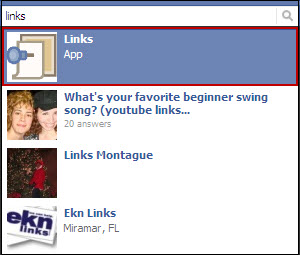


2. Click the Links app.

The page by default displays your friends' links.

3. Click My Links on the left side bar to view your links.


Although I'm not too happy with this workaround at least we can still view the information.

Did this help you? Tell us in the comment section below. Also if you need to know how to find anything else in the new profile let us know. It may just be our next blog post.

-------------------------------
Update April 2013

With the new timeline the steps I provide in my post don't work anymore. I don't want to delete the post because I want to keep track of this functionality and later be able to provide you with another workaround to find your links.

In the meantime, if you click on Activity log under your cover, then on Your Posts on the left menu you will be able to see the links. The disadvantage is that this will display all your posts not only the links you've shared. If I find another quicker way I will post it here.






November 16, 2010

iPhone Tip: How to access your Privacy and Account settings on the Facebook iPhone app

If you haven't downloaded the latest Facebook iPhone app update I would suggest you do. Why you ask? Because now you can access and update your Privacy and Account settings through the app. What a concept?

Don't know why this took so long but hey now it's here.

To access these settings tap Account. This is where you use to just logout from Facebook. 


Then tap either Account Settings or Privacy Settings to update the information.

You are then taken to the same page you see when you access this information from the Facebook web site.

Did this tip help? Let us know in the comment section. You can also request tips via the comment section or share our tips with others by using our Share or Tweet buttons.


November 06, 2010

FAQ: What is a Facebook Friendship Page?

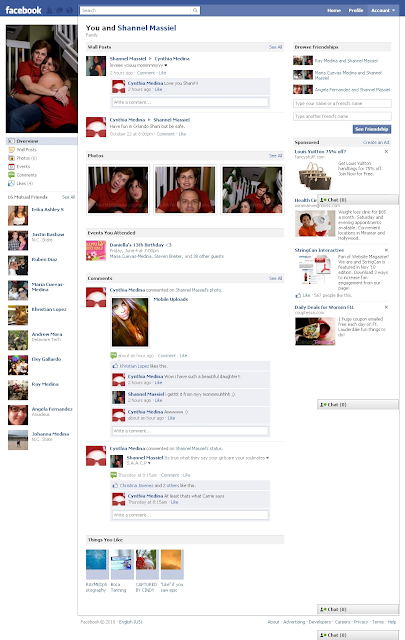
Have you ever wondered how many things you share with a friend? Like comments, events, or photos? Well the Friendship page helps you summarize all that.

You can display a Friendship page between you and a friend and see your mutual events, wall posts, comments, photos you're tagged in, friends, and even which pages you both like.

It's like summarizing your relationship.

To display a Friendship page:

1. Visit a Friend's page.
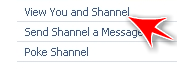
2. Click the View You and xxxxxx link (xxxxxx=friend's name) under their profile picture.


And voila!

Facebook summarizes your friendship in just seconds.


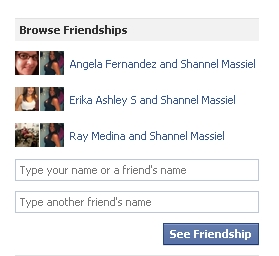
Also from that page you can browse mutual friend's Friendship pages or other friendship pages between and another friend.


If you don't see a link under a friend's profile picture, click the Filters link on their wall.


And then click the Friendship Page link.


What do you think about this new feature? Tell us in the comment section below.


October 18, 2010

FAQ: How can I hide the photos and videos my friends tag me in on Facebook?

Yes, you can and it's not a bad idea to do that. You never know what photo will surface from your past and you probably don't want your family, friends or coworkers seeing those crazy days, right?

What you can do is apply privacy settings to your profile in order for these photos to only be visible to you, specific people or a list of friends. It depends on how restricted you want it.

To do this:

1. Click Account.
2. Select Privacy Settings.
3. Click on Customize Settings.


4. Scroll down to the Things others share section.
5. Click the pull-down menu next to Photos and videos I'm tagged in.


6. Select Custom.
7. Select Specific People to let only some people see these photos or videos.


You can also select Only Me, if you don't want anyone except yourself seeing photos or videos you're tagged in.

8. If you select Specific People then enter their names in the field below the pull-down menu. if you use Friend lists you can type in the name of the list to allow a group of people to view it.
9. Click Save Setting.


You can do the reverse as well. If you don't mind most of your friends to be able to see the photos and videos you're tagged in then you can select the people you want to hide information from.

To do that enter the names or friend list in These people: field under "Hide this from".


And that's it, from here on only those people will see any photos or videos you're tagged on.

Let me know if that helped in the comment section below.


October 05, 2010

How To: How to personalize your Facebook Profile link with a customized username

Do you remember when Facebook launched "claim your username"? If not, and you missed it you can still claim your username to make your Facebook profile page URL more friendly and easy to remember. A lot of people ask me why should they claim their username, and this is the best way I can explain it. 


Well you really don't need a username but it's a nice to have for the following reasons.
  1. You have a more personalized URL that you can give out to your friends or publish on your social site's pages or website.
  2. A personalized URL gets you more noticed and you're easier to find. If you have a business or want to get noticed, this is something you would want. You get your brand noticed easier and quicker.
  3. It avoids online identify theft. If you don't claim your name some one else will. Just think about it, if people find you in search engines wouldn't you want the information found to be written or owned by you rather than by some one pretending to be you? That's why having blogs, web sites, and social site profiles are not a bad thing, they give you the opportunity to have a online identity and represent yourself.
It's recommended you select your actual name. Remember you don't want anyone pretending to be you, right? So you see, it's not just about having a username, it's about having a presence.


Now let's get to the good stuff, to claim your username:

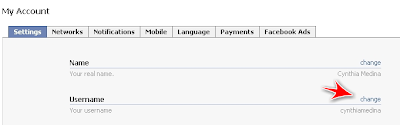
1. Click Account and select Account Settings.
2. Click Change under Username.


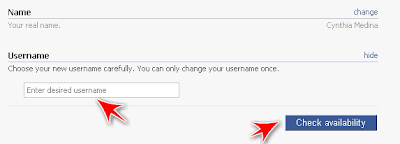
3. Enter the username of your choice.


Remember this is going to be the URL for your Facebook profile page, for example: http://www.facebook.com/username. Doesn't that beat having a URL like this;http://www.facebook.com/profile.php?id=1337590867


4. Click Check availability button to check if that username is available.
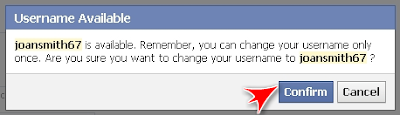
5. Click Confirm if you want to keep this username.


Just keep in mind you can only change it once so think about it before clicking confirm. After you click confirm you will no longer see the Username option under Account Settings.


If you ever forget your username just click the link at the top right of your profile page and it will display your URL in the address bar. Your username are the characters after the slash (/).


Simple right?


My Facebook URL is http://www.facebook.com/cynthiamedina

What's yours? Tell us in the comment section.

July 10, 2010

5 Reasons the Virtual Event Niche is so popular

Check out this video from Craig Cannings from the VAClassroom.com on the "5 Reasons the Virtual Event Niche is so Popular.


A brief message from Craig Cannings on Virtual Event Services


VAClassroom.com offers certification courses for virtual assistants. Their courses are jammed packed with a wealth of valuable content and with the inspiration of Craig Cannings.

Are you a virtual event planner? Tell us your experience in the comment section.


July 01, 2010

VS: Great comparison: HTC EVO vs iPhone 4

Check out this video for the most hilarious comparison of HTC EVO and iPhone 4.


What do you think about the HTC EVO vs iPhone 4? Tells in the comment section below.


June 13, 2010

Free eBook with Top Internet Marketing Tools and WordPress Plugins

I stumbled upon (and I'm not talking about the site) on this free ebook that offers the ultimate collection of free and paid Internet Marketing tools and WordPress plugins.

Even though this blog is to review Social Media sites and apps, I think this ebook offers a lot of value for my Social Media friends. A lot of tools mentioned here are not only used for Internet Marketing but also for blogging, social networks, graphic design, and so many other things that I thought not offering this ebook on my blog would be a disservice to you all.

The ebook is called "The Ultimate Toolkit for Internet Marketers" and it's composed of 37 free tools, 23 paid tools, and 30 top WordPress Plugins. The author Peter Downs really did a great job and compiling this ebook.

You can download the ebook and thank me later :O)


Do you have any resources you would like to share with us? Share them in the comment section below.

Share/Save/Bookmark
