Check out this video for the most hilarious comparison of HTC EVO and iPhone 4.
What do you think about the HTC EVO vs iPhone 4? Tells in the comment section below.

Showing posts with label videos. Show all posts
Showing posts with label videos. Show all posts
July 01, 2010
VS: Great comparison: HTC EVO vs iPhone 4

 An artsy person fulfilling my curiosity by figuring out the Hows & expressing them in some sort of creative outlet. I love art in all forms, technology, music, comedy, movies & travel.
May 15, 2010
Stupid things to do with your cell phone
If you're ever bored, here are 3 stupid things you can do with your cell phone to entertain yourself. Some how though I feel the need to say "don't try this at home" on #2 and #3.
Cellular & Mobile Phones:
Stupid Things To Try With Your Phone
What other things would you add to this list?
Cellular & Mobile Phones:
Stupid Things To Try With Your Phone
What other things would you add to this list?
An artsy person fulfilling my curiosity by figuring out the Hows & expressing them in some sort of creative outlet. I love art in all forms, technology, music, comedy, movies & travel.
April 17, 2010
How To: How you can create vintage videos with the iPhone
I'm always looking for new apps that enhance my experience with the iPhone. In my quest I found this neat little app called "Silent Film Director". Like the name, the app automatically converts your videos into a beautiful vintage piece of work with almost no input from you. All you have to do is select the settings and press record. That's pretty simple, right?
The app has several recording settings like sephia, vintage sephia, 20's, 60's, and black and white. All these settings make your video look very vintage and antique.

It also has different sounds like piano 1, and 2 and movie projector which gives your video more credibility.

There are also settings to change the video time scale making your video either faster or slower. Play with these settings, they make it more fun.
 All these settings make your video look similar to a Chaplin movie.
You also probably want to select the quality of the video depending on where you'll host it or for what occasion you're producing it.
 After you select your settings then tap the Take Video button to display the recording screen.
 All you have to do now is press record and stop just like you do with the standard video on the iPhone. After you're done, all videos are automatically saved to your library.
Check out these short videos I created while testing the app.
Me :O)
My four legged son Gordo.
My four legged son Oreo.
My daughter.
The price for this app is only $0.99 and if you're into making videos I think it's well worth it.
Download it now:

Let's recap; select settings, record and stop and you got yourself a professional vintage video with almost no work on your part.
Have you tried this app? If so, please share some of the videos you produced in the comment section.

The app has several recording settings like sephia, vintage sephia, 20's, 60's, and black and white. All these settings make your video look very vintage and antique.
It also has different sounds like piano 1, and 2 and movie projector which gives your video more credibility.
There are also settings to change the video time scale making your video either faster or slower. Play with these settings, they make it more fun.
All these settings make your video look similar to a Chaplin movie. You also probably want to select the quality of the video depending on where you'll host it or for what occasion you're producing it.
After you select your settings then tap the Take Video button to display the recording screen.Check out these short videos I created while testing the app.
Me :O)
My four legged son Gordo.
My four legged son Oreo.
My daughter.
The price for this app is only $0.99 and if you're into making videos I think it's well worth it.
Download it now:
Let's recap; select settings, record and stop and you got yourself a professional vintage video with almost no work on your part.
Have you tried this app? If so, please share some of the videos you produced in the comment section.
An artsy person fulfilling my curiosity by figuring out the Hows & expressing them in some sort of creative outlet. I love art in all forms, technology, music, comedy, movies & travel.
September 15, 2009
How NOT to use PowerPoint!
I can see this being used at the beginning of a PowerPoint class, enjoy.
Agree with Don. PowerPoint should be used to give your lecture a visual effect be it a class you're teaching or a presentation to your management team.
Keep it short, to the point, and use images that will add to your lecture.
How do you use PowerPoint?
Agree with Don. PowerPoint should be used to give your lecture a visual effect be it a class you're teaching or a presentation to your management team.
Keep it short, to the point, and use images that will add to your lecture.
How do you use PowerPoint?
An artsy person fulfilling my curiosity by figuring out the Hows & expressing them in some sort of creative outlet. I love art in all forms, technology, music, comedy, movies & travel.
September 10, 2009
Social Media is About People, Not Logos

View this video to give you an idea on how to use Social Media and humanize your brand. Some Great information is shared.
An artsy person fulfilling my curiosity by figuring out the Hows & expressing them in some sort of creative outlet. I love art in all forms, technology, music, comedy, movies & travel.
September 09, 2009
Video HowTo: Reviewing the changes to the Facebook Friends List
 It's always hard to keep up with the ever going changes of Facebook. Friends list is one of the topics which use is not much understood. Sure everyone has tons of friends, but are they all close friends? Is everything you post ok for everyone to view?
This is where Friends Lists come in handy so I took the time to document the latest changes done to this feature.
Hope the video helps you understand the latest changes.
An artsy person fulfilling my curiosity by figuring out the Hows & expressing them in some sort of creative outlet. I love art in all forms, technology, music, comedy, movies & travel.
How do I organize iPhone Apps in iTunes 9?

If you're like me then you probably have tons of apps that would be difficult to find if you had endless pages of pages. With iTunes 9, you can now organize them in folders which makes finding an app much more easier. I've compiled a couple of videos that will help you succeed at this. Enjoy!
How to Organize iPhone Apps in iTunes 9 Part 1
How to Organize iPhone Apps in iTunes Part 2
Now that you've learned how to do that, organize away.
An artsy person fulfilling my curiosity by figuring out the Hows & expressing them in some sort of creative outlet. I love art in all forms, technology, music, comedy, movies & travel.
August 30, 2009
Reasons for deleting friends on facebook
An artsy person fulfilling my curiosity by figuring out the Hows & expressing them in some sort of creative outlet. I love art in all forms, technology, music, comedy, movies & travel.
August 27, 2009
Twitter Search in Plain English
An artsy person fulfilling my curiosity by figuring out the Hows & expressing them in some sort of creative outlet. I love art in all forms, technology, music, comedy, movies & travel.
August 26, 2009
Feel like stalking your ex? There is an app for that!!
Stalkers don't get your hopes up, it's just a parody.
An artsy person fulfilling my curiosity by figuring out the Hows & expressing them in some sort of creative outlet. I love art in all forms, technology, music, comedy, movies & travel.
June 14, 2009
Video Review: Share videos, pictures, and URLs on Twitter with Tweetube
Here is another great service that allows you share more than just text and pictures on Twitter. With Tweetube you can also share webcam videos, YouTube videos and website URLs on Twitter and all for free.
So sit back and play our video to learn how this service works.
By the way, if anyone has a Mac and a webcam and would like to show us how sharing a webcam video works on Mac feel free to add your video URL as a comment. Sharing is always encouraged :O)
Follow me on Twitter: http://www.twitter.com/cynthiamedinam
Have you used this service? Or what service do you use and why?
So sit back and play our video to learn how this service works.
By the way, if anyone has a Mac and a webcam and would like to show us how sharing a webcam video works on Mac feel free to add your video URL as a comment. Sharing is always encouraged :O)
Follow me on Twitter: http://www.twitter.com/cynthiamedinam
Have you used this service? Or what service do you use and why?
An artsy person fulfilling my curiosity by figuring out the Hows & expressing them in some sort of creative outlet. I love art in all forms, technology, music, comedy, movies & travel.
May 15, 2009
Review: Sending video messages became easier with Eyejot
Wouldn't it be great to quickly create video messages and send them via e-mail without having to actually use a camcorder and download files? Guess what? You can. There is a service called Eyejot which let's you create video messages and e-mail them to anyone. All you need is a microphone (which can be built in your PC or laptop) and a web cam. Sorry you do need a web cam because your image has to be recorded some how, right? But that's it!
With Eyejot you can import your contact information from several address books or manually add them. You can also create contact groups in case you want to video message a group of people.
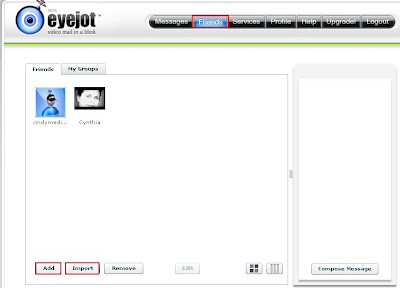
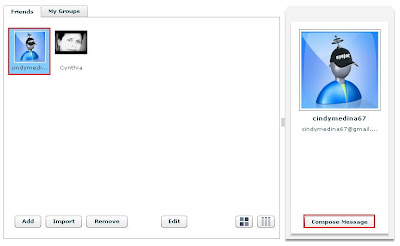
To start recording, select the person or group you want to send a message too and click Compose Message.
Once you do that the service will read your web cam and the following window will display.
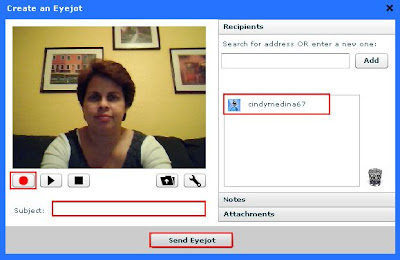 BTW, it's not mandatory to select a contact before you start recording, you can add the contact information from the Create an Eyejot window by either searching for the contact name or entering the actual e-mail address. If you select a contact from your account, the person's e-mail (s) will be added to the right side of the screen. To record your message press the record button, and after you're done press stop. Like all recording devices you can play the video to review it and if you're not happy with it press record again.
After you're done recording just enter the Subject, and press Send Eyejot. The recipient will receive an e-mail with the video embedded in it so they can play it right from there or they can click the link included in the e-mail to watch video. This is a sample of the e-mail.
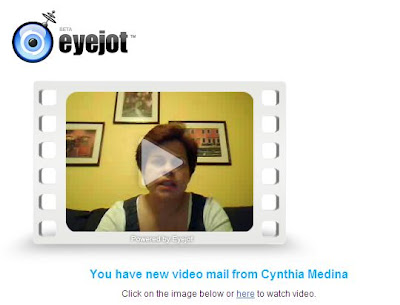
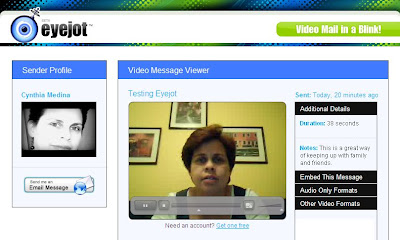
If the recipient clicks on the watch video link in the e-mail they will be sent a video page where they also have the option to embed the video.
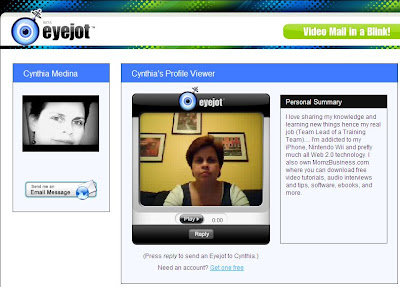
As all web 2.0 services your account comes with a profile page where you can showcase your about me information including a video introduction.
Eyejot has several types of accounts and one of them is free. With their free account you are limited to creating 60 second videos. It you feel the need to create longer videos you can upgrade to their paying account which offers 5 minute long videos.
The service works pretty well and it really comes in handy to keep up with family members and friends that live far away. I only wish my grandma had a computer to be able to see her more often :O(
Another way you can use this service is to market your business. Think about, a short and sweet personal message sent to your mailing list instead of a cold text e-mail? Wouldn't that give your message a more personal touch?
Here is a sample video message I created to test the service.
I personally give it a 4 star rating, and really recommend it but don't just take my word for it. Try it out, it's free. Have you use this service or any other service similar to this? What has been your experience.
BTW, thanks to my Twitter friend AgustinaP for mentioning this service.

With Eyejot you can import your contact information from several address books or manually add them. You can also create contact groups in case you want to video message a group of people.
To start recording, select the person or group you want to send a message too and click Compose Message.
Once you do that the service will read your web cam and the following window will display.
BTW, it's not mandatory to select a contact before you start recording, you can add the contact information from the Create an Eyejot window by either searching for the contact name or entering the actual e-mail address. If you select a contact from your account, the person's e-mail (s) will be added to the right side of the screen. To record your message press the record button, and after you're done press stop. Like all recording devices you can play the video to review it and if you're not happy with it press record again.After you're done recording just enter the Subject, and press Send Eyejot. The recipient will receive an e-mail with the video embedded in it so they can play it right from there or they can click the link included in the e-mail to watch video. This is a sample of the e-mail.
If the recipient clicks on the watch video link in the e-mail they will be sent a video page where they also have the option to embed the video.
As all web 2.0 services your account comes with a profile page where you can showcase your about me information including a video introduction.
Eyejot has several types of accounts and one of them is free. With their free account you are limited to creating 60 second videos. It you feel the need to create longer videos you can upgrade to their paying account which offers 5 minute long videos.
The service works pretty well and it really comes in handy to keep up with family members and friends that live far away. I only wish my grandma had a computer to be able to see her more often :O(
Another way you can use this service is to market your business. Think about, a short and sweet personal message sent to your mailing list instead of a cold text e-mail? Wouldn't that give your message a more personal touch?
Here is a sample video message I created to test the service.
I personally give it a 4 star rating, and really recommend it but don't just take my word for it. Try it out, it's free. Have you use this service or any other service similar to this? What has been your experience.
BTW, thanks to my Twitter friend AgustinaP for mentioning this service.
An artsy person fulfilling my curiosity by figuring out the Hows & expressing them in some sort of creative outlet. I love art in all forms, technology, music, comedy, movies & travel.
February 15, 2009
App Video Review: Creating videos on your iPhone - Animoto
 Animoto is a service that allows you to create free short videos by using your still life pictures. Their online service also allows you to create and download unlimited full-length videos for a minimal yearly fee. Recently they made their service available on the iPhone through the new Animoto app.
How does it work?
Well first let's tell you about the navigation. Animoto has two main tabs, Create New Video and My Videos. I think the tabs are self explanatory, right?
To create a video you go to the Create New Video tab, and you'll be prompted to select 8-12 pictures from your library. One thing you need to know is that you can't take new pictures with Animoto, you can only use existing ones.
After you select the pictures you're prompted to select the music track. Animoto has a good choice of music you can use. After you're done selecting your pictures and music then all you need to do is name your video, and press Create Video.
You'll need to wait about 4 minutes for the video to render but I know you'll be impressed with the results. Animoto has a way of displaying your pictures with the beat of the music that is just simply cool and no two videos are the same even if you use the same pictures.
After the video is created you can share it with your friends via e-mail, edit the pictures or music, remix it or delete it.
The only issue I have is that you can't synchronize the videos you create on your iPhone with your online account but there is a workaround to save your online account videos to your iPhone. If you go to Animoto.com on your iPhone and play a video from your online account, you'll have the option to save it into the app :O)
The creation of full-length videos is not available through the app but that's understandable. This app is great just like their online service, and it's free so I recommend you try it.
Check out this video for a quick look at Animoto (courtesy of AppVee).
Download Animoto or visit the Animoto site.
An artsy person fulfilling my curiosity by figuring out the Hows & expressing them in some sort of creative outlet. I love art in all forms, technology, music, comedy, movies & travel.
January 23, 2009
What is facebook addiction?
I think everyone will get a kick out of this video because it's so true.
An artsy person fulfilling my curiosity by figuring out the Hows & expressing them in some sort of creative outlet. I love art in all forms, technology, music, comedy, movies & travel.
January 16, 2009
How not to get caught on Facebook
Interesting tips on how to access Facebook when your company is blocking it.... I haven't tried but I wonder if anyone else has?
Has anyone tried these sites mentioned in the video?
Has anyone tried these sites mentioned in the video?
An artsy person fulfilling my curiosity by figuring out the Hows & expressing them in some sort of creative outlet. I love art in all forms, technology, music, comedy, movies & travel.
January 06, 2009
Video Review: Storyz.com changing the way you write stories
This video demonstrates how you can create stories in collaboration with others at Storyz.com.
>
There is also an app available for the iPhone and it works very well. If you use the app, you can send invites to your stories using your iPhone address book.
Have you used this service? If so, tell us what you think.
>
There is also an app available for the iPhone and it works very well. If you use the app, you can send invites to your stories using your iPhone address book.
Have you used this service? If so, tell us what you think.
An artsy person fulfilling my curiosity by figuring out the Hows & expressing them in some sort of creative outlet. I love art in all forms, technology, music, comedy, movies & travel.
January 04, 2009
2008 viewed from an iPhone lense
These were the events that took place in my life in 2008 and were captured with my iPhone.
Animoto is a great site for creating short and long videos in minutes.
Animoto is a great site for creating short and long videos in minutes.
A lot of these photos were taken before I learned some tips and tricks on lighting and using filters so 2009 should bring lots of great photos. For some great tips on iPhone photo taking visit Chase Jarvis' blog.
An artsy person fulfilling my curiosity by figuring out the Hows & expressing them in some sort of creative outlet. I love art in all forms, technology, music, comedy, movies & travel.
August 24, 2008
Social Traffic Network Training Videos
The other day I received an offer that I couldn't pass, and I think you won't be able to pass yourself. As you know, Web 2.0 applications are taking over the internet and their life span is not short. They are here to stay and those of us that want to succeed on the Internet will need to get on board or else we will be left back.
The new opportunity I have for you is a collection of Social Traffic Network Training videos that will teach you how to use the top social networks which is what you really need to understand before you can incorporate them in your business. Not only will you be able to use them for yourself but they also include Private Label rights so you can brand them instantly and even resell them if you want.
These are just some of the videos you will find and every month 3 more videos are added:
Now if you still need help deciding which Web 2.0 services to use visit our Web 2.0 Applications Review Wiki in which I explain and review Web 2.0 applications that I've used. Stop by and join our wiki and even add your reviews, why not it's free.
The new opportunity I have for you is a collection of Social Traffic Network Training videos that will teach you how to use the top social networks which is what you really need to understand before you can incorporate them in your business. Not only will you be able to use them for yourself but they also include Private Label rights so you can brand them instantly and even resell them if you want.
These are just some of the videos you will find and every month 3 more videos are added:
- Del.icio.us
- Bebo
- MySpace
- Digg
- Google video
- Technorati
- YouTube
- Stumble Upon
- Ning
- Squidoo
- 43Things
- Fotolog
- Multiply
- Meet up
Now if you still need help deciding which Web 2.0 services to use visit our Web 2.0 Applications Review Wiki in which I explain and review Web 2.0 applications that I've used. Stop by and join our wiki and even add your reviews, why not it's free.
An artsy person fulfilling my curiosity by figuring out the Hows & expressing them in some sort of creative outlet. I love art in all forms, technology, music, comedy, movies & travel.
January 26, 2008
Review: Another great way of using Avatars - Voki
Here I am on a Saturday night with nothing to do other than surf the Internet for new tools. I decided to read up on blogs in education and I ended up visiting a wiki that spoke about a specific class blog. The teacher mentioned how his students were using more and more Voki on their blogs after he introduced it to them. So what did I do? I had to find out what Voki was of course so I visited his class blog called A Really Different Place and clicked on one of the student's blog and there it was. It's a personalized avatar which you can use to create small videos. Voki is free to join and it's very easy to use, as you can see below I created a small video using my own voice.
I can see Voki being used to introduce concepts, maybe small instructional pieces, for help or just to make your blog a little more personal.
I've always been interested in avatars but I've noticed that not a lot of use is being given to them in the classroom. Has anyone used Voki before? Better yet, have you used avatars in your training programs, and how?
Get a Voki now!
I can see Voki being used to introduce concepts, maybe small instructional pieces, for help or just to make your blog a little more personal.
I've always been interested in avatars but I've noticed that not a lot of use is being given to them in the classroom. Has anyone used Voki before? Better yet, have you used avatars in your training programs, and how?
Get a Voki now!
An artsy person fulfilling my curiosity by figuring out the Hows & expressing them in some sort of creative outlet. I love art in all forms, technology, music, comedy, movies & travel.
November 17, 2007
Creating inexpensive videos
Before you implement video in your organization and spend hundreds or even thousands of dollars in equipment I would suggest you read this post.
At a Learning Conference I attended there was a session about creating rapid video. The main point of this session was to let everyone know that you don't need an expensive camcorder, lighting kits or nothing of that nature to get the point across. Actually they mentioned that people believe your message more if it looks real. The more perfect your video looks the less your customers will trust you.
They demonstrated how to create a video and how to post it on your blog, YouTube, wiki, or any where else you want. All of this in just a few minutes.
The videos produced can be edited with Windows Movie Maker which every PC with Windows pretty much has or other video editors that are out there which lots of them are free. The most impressive thing about this camcorder was the clarity of the picture and audio, you would never think a cheap camcorder would produce such great videos. It's also pretty easy to use, it only has three buttons, one to record/stop, one to view the videos, and the other one to delete.
Another great thing is the size, it's so small you can carry it around in your pocket so you don't miss out on any occasion. The camcorder also doesn't require any wires to connect to your PC, it has a USB connection on the side so it hooks up directly to your PC.
I know, enough of the hype, right? OK, the name of the camcorder is Flip Video Ultra, and it records up to 60 minutes of videos.
If your organization wants to start producing videos, I would suggest you look into this first. It's always better to start small, then to spend lots of money and then hit yourself on the head.
Have you flipped anyone?
At a Learning Conference I attended there was a session about creating rapid video. The main point of this session was to let everyone know that you don't need an expensive camcorder, lighting kits or nothing of that nature to get the point across. Actually they mentioned that people believe your message more if it looks real. The more perfect your video looks the less your customers will trust you.
They demonstrated how to create a video and how to post it on your blog, YouTube, wiki, or any where else you want. All of this in just a few minutes.
The videos produced can be edited with Windows Movie Maker which every PC with Windows pretty much has or other video editors that are out there which lots of them are free. The most impressive thing about this camcorder was the clarity of the picture and audio, you would never think a cheap camcorder would produce such great videos. It's also pretty easy to use, it only has three buttons, one to record/stop, one to view the videos, and the other one to delete.
Another great thing is the size, it's so small you can carry it around in your pocket so you don't miss out on any occasion. The camcorder also doesn't require any wires to connect to your PC, it has a USB connection on the side so it hooks up directly to your PC.
I know, enough of the hype, right? OK, the name of the camcorder is Flip Video Ultra, and it records up to 60 minutes of videos.
If your organization wants to start producing videos, I would suggest you look into this first. It's always better to start small, then to spend lots of money and then hit yourself on the head.
Have you flipped anyone?
An artsy person fulfilling my curiosity by figuring out the Hows & expressing them in some sort of creative outlet. I love art in all forms, technology, music, comedy, movies & travel.
Subscribe to:
Posts (Atom)