Showing posts with label social network. Show all posts

June 29, 2011

More than you want to know about Google+ or is it?

If you're reading this post is because you've heard a little bit about Google+ and of course you want to know more. After all it's a Google product, right?

Well I've compiled a series of videos that will give you quick look at the different features offered in Google+ such as Circles, Hangouts, Sparks, and Instant upload.


The New Google Social Network-- Google+ Project -- Why It will be a Success??

The Google+ project: Explore Settings


The Google+ project: Explore Hangouts

The Google+ project: Circles

The Google+ project: Explore Sparks


The Google+ project: Explore Mobile

I personally can't wait to beta test it, hopefully I get my invite soon. I'm especially looking forward to Hangouts, what about you?

Do you see yourself using Google+ in the future, or will Facebook continue to dominate your social network world?


January 11, 2011

FAQ: How can I view the links I've posted on Facebook?

As the new Facebook profile page design is rolling out to everyone so are lots of questions on where to find things on the profile. One of them is how can I view the links that I've posted on Facebook in the past?

This information used to be accessible from the Home page but now it's no longer visible to the human eye on your profile, and is it gone forever? The answer is no. Facebook may not make it visible on your profile but you can still view the past links you've shared with your friends.

To view your links:

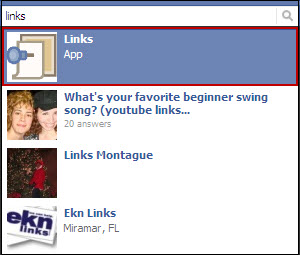
1. Type the word links in the Search field on the top of your profile.


2. Click the Links app.

The page by default displays your friends' links.

3. Click My Links on the left side bar to view your links.


Although I'm not too happy with this workaround at least we can still view the information.

Did this help you? Tell us in the comment section below. Also if you need to know how to find anything else in the new profile let us know. It may just be our next blog post.

-------------------------------
Update April 2013

With the new timeline the steps I provide in my post don't work anymore. I don't want to delete the post because I want to keep track of this functionality and later be able to provide you with another workaround to find your links.

In the meantime, if you click on Activity log under your cover, then on Your Posts on the left menu you will be able to see the links. The disadvantage is that this will display all your posts not only the links you've shared. If I find another quicker way I will post it here.


December 11, 2009

Review: Do you find Facebook too complicated? Then try Facebook Lite

Facebook released a more simpler version of their existing site called Facebook Lite. A public preview is available to those that already have a Facebook account and that use the English (US) version. You can take a look at Facebook Lite but before you do read on so you know what to expect.

Now remember lite means that you won't have all the features available in the regular Facebook site but if you're a person that only wants to read the latest status, share pictures and videos then this version is for you.

Before I continue I would like to add that I've erased the photos and names of my friends on the screen captures to protect the innocent :O) Just because I want to share information with the general public doesn't mean they want to share their lives with everyone, right?

So here goes my quick overview of the site, hope this helps.

Let's start by saying that after you log in your default page is still what we call the Home page in the regular Facebook so that hasn't changed. With that said, let's look at the features that have changed starting with the top navigation.


Facebook logo

It's just not a logo, it's the only way you get back to your Home page. So remember this important detail or else you will have no clue how to view all your friend's gossip.

Profile

Through this link you can view and update your profile.

Events

Shows you the latest events. So if some one sends you an invite to an event or it's some one's birthday then this is where you would go to check it out.

Chat

No more chat at the bottom right side of the page, it's right at the top. When you click Chat a new window opens which looks slightly different then the chat in the regular Facebook. As you can see you still have the Friend List and Options feature at the top of the chat.


Below this information you will see the various friend lists and your friends. To chat with a friend just click their name, and a new field at the bottom right of the window will appear where you can type your message so the functionality hasn't changed.

By the way if you see a dark dot next to the Chat link on the top navigation that means you're offline.

Inbox

The major difference here is that you don't have the option to delete a message from your inbox by clicking the X next to the subject. You need to view the message and then click Delete.

Settings icon
By clicking the icon you access the privacy settings and account information. This is another important section to remember as you can switch back to the regular Facebook site through here (see Changing your Default Site section below).

Door icon

The icon is used to log out.


Home Page

This page is very clean and simple. Remember how I mentioned this was a simpler version, well
here you can see it.


In the middle of the page you'll see by default all your friend's and group stories and if you want to view only the top stories then you click View Top Stories. If there is any birthday occurring it will display in this section of the page as well.

To the right side of the page you will only see People you may know and the ad section. That's it! Simple right?

To update your status click Write, to add pictures click Post Photos, and to add videos click Post Video buttons. That's it! No notes, no links, no gifts....


Profile Page

The profile page is so simple to update that even a cave man can do it :O)

First notice that you don't have all the tabs at the top, and no side boxes either. All you have are the same three buttons from the Home Page and they work the same too. Under these buttons you'll have all your updates like you usually do.


Editing your profile

Under your profile picture you have the Wall, Info, Friends, and Photos & Video links. To update your profile picture or your information just click on Info and then Edit Profile link at the top of the page. You can toggle from the Basic and Favorite information sections by clicking the buttons.


One cool thing Facebook is doing is displaying tips on the right side of your profile on how to use Facebook Lite so keep your eyes opens.


To go back to your profile just click on your name.


Friends

To view all your friends click the Friends link under your profile picture. In the regular Facebook site your list of friends showed their current status and you had the option to send them a message but not in this version. All you can do from this list is to unfriend some one by clicking the X.


You can view the list of groups you're a fan of by clicking the Fan of link at the top of the page. By clicking the X you will unfan the group.... I wonder if that word will be added to the dictionary next year, hummmm.

Photos & Videos

Click the Photos and Videos link under your profile picture to view your photos and videos. The page is divided in three sections. The top section displays all the pictures you've been tagged on, the middle section displays all the videos you've been tagged on, and the bottom section displays all your photo albums.


You can't add photos and videos from this section. To add photos or videos remember to click
the Post Photos and Post Video buttons at the top of your profile or Home page. After that the process is the same. Now the tag, like and comment features on photos and videos are positioned differently, see below.


Changing your Default Site

If you decide you want to continue using Facebook Lite you can set this version as your default from the Settings sections. Once you access the Settings section click Default Site.


Select the default version, and click Save.


If you select Facebook Lite that means that every time you access http://www.facebook.com/ it will take you to Facebook Lite.

Also notice you can use both versions by selecting "Let me switch between Regular Facebook and Facebook Lite" option. When you select this option you will see on the top right corner of the page a link that says "Back to regular Facebook" or Try Facebook Lite depending on the version you're using at the moment.

In the Settings section you can also update your privacy settings, change your password, e-mail, and more.

I really like the lite version especially because I'm not a Farmville or Yoville person. If it wasn't for me using some applications that incorporate some more advance functionality I would use the Facebook Lite as my default. In the meantime, I've set my account to use both.

Just remember that with the launch of any new web site or new version of a web site things don't work 100% so things are going to go wrong. Just report them fast that way Facebook can correct them quicker.

Well that's my quick overview of Facebook Lite, have you used it? Share your thoughts in the comment section.


Share/Save/Bookmark

October 01, 2009

How can I accept or ignore all Facebook friend request at once?


Yes and No :O(

Unfortunately you can't accept all friend requests at once but you can ignore all of them. I think the reason behind this is because of the privacy settings everyone has on their profile. You might not want all these friends to have the same access to your profile therefore you need to add them one by one. If you think about it, it makes sense, right?

To ignore all friend request:

1. Click on x friend requests (x=number of friend request) or See All link on the top right corner of the Home page.
2. Click on Ignore All link on the top right corner.
By the way if you don't see anything happen when you click the link make sure to either hold down the CTRL key as you click or allow pop-up blockers.
3. Checkmark the box next to Friend requests (x), and then click Ignore these requests.
4. Click Okay.

In step 3 you can also see other requests sent to you by your friends and groups so just make sure you checkmark the correct thing.

Hope this helps!

September 09, 2009

Video HowTo: Reviewing the changes to the Facebook Friends List


It's always hard to keep up with the ever going changes of Facebook. Friends list is one of the topics which use is not much understood. Sure everyone has tons of friends, but are they all close friends? Is everything you post ok for everyone to view?

This is where Friends Lists come in handy so I took the time to document the latest changes done to this feature.


Hope the video helps you understand the latest changes.

January 23, 2009

What is facebook addiction?

I think everyone will get a kick out of this video because it's so true.


January 16, 2009

How not to get caught on Facebook

Interesting tips on how to access Facebook when your company is blocking it.... I haven't tried but I wonder if anyone else has?


Has anyone tried these sites mentioned in the video?

May 06, 2008

My kind of Social Network

For those Web 2.0 fanatics like me out there... if there is any book you buy it should be Blogs, Wikis, and More by Terry Burrows. The book categorizes the different types of technology, provides a list of the most popular sites in each category and explains them in plain English. It also gives you steps on how to use at least one application in each category and gives you tons of sites. It's my kind of book. It's also a great guide for those that are starting to learn and work with Web 2.0 applications.


MySpace

I haven't read the entire book but I went through most of the categories, and looked at some of the sites and I've already have about 20 applications that I want to test so stay tuned to this blog for updates.

Now knowing me, I had to at least try one today. The one that peeked my interest was Singshot.com, it was in the Music category and it's classified as a Karaoke Social Network. OK you got me, I admit I'm a singer wanna be.... Not that I can sing but I still hurried over to the website to look around and of course ended up creating an account.

To my surprise the site was much more than just a Karaoke Social Network. You can also record yourself telling a story, doing stand up comedy, and even poetry reading. All you need is a working microphone and a webcam if you want to record the picture as well but that's optional. You can also create mashups.

I was ready to record a clip of myself singing but unfortunately I can't find my microphone but trust me, you'll have the option to hear me soon enough. I will continue to look for that microphone : )

As any Social Network, you can make your clips public and allow other members to comment and rate your performance. Boy, there are a lot of people that have a very nice voice.... but also a lot that don't :(

It looks like the site changed URLs after the book was published because Singshot.com directs me to The Sims on Stage but who cares, the site is great and it's lots of fun.

Is there an instructional use? Well I think so, maybe not in Corporate America but I can see a teacher using this in school. Children can write their own stories or poetry and create videos to share with classmates and in turn their classmates can rate their work. Works for me.

If you come up with any uses for corporate training let me know....

So sing and write away!


November 17, 2007

The Good of MySpace

For those that are not familiar with MySpace, this is a Social network website that allows it's users to create their own page, and interactive with other members through either video, music, blogs, pictures, groups, and forums.
A lot of negative articles have been published on the news about MySpace and I'm here to tell you what the good is. Yes, there is good.

Kids today are becoming something that most of us had to go to school for, that's right. They are becoming website developers, graphic designers, video producers, and writers and they don't even know it. And even worst, parents are not noticing.

These kids at a young age are learning how to customize the look of a website through the use of cascading style sheets which in the MySpace language it's called "code". They change the look and style of their page with the same ease they change their cloths... And more and more kids are creating websites that offer hundreds of free codes (layouts) for other members to use and customize their page. That's a lot of programming.

Kids today take digital pictures and learn how to enhance them to the point of being worthy of a gallery exhibition. They record reality videos that appear to be produced by a professional video producer. They write articles about themselves and their life's that are so deep that your hairs stand up.

And they do it all for what? They do it all to collaborate with their friends, which is the core of Web 2.0.

So yes, even though MySpace has attracted a lot of sex offenders and negative press, we should all recognize that it has also brought a lot of good with it.

Anyways, what ever happened to teaching the kids not to talk to strangers? There are bad people every where therefore the same principles apply online. We need to teach our kids how to survive out in the real world and not isolate them from the truth. Give them the freedom to be and at the same time being there to watch them and guide them, and that's not MySpace's responsibility.