
Showing posts with label iphone. Show all posts
Showing posts with label iphone. Show all posts
July 15, 2017
How To: Create a QR code to share your Wifi Network Password with your friends
What is one of the questions your friends ask you when they visit your home?
"What's your Wifi password?" Right?
Well this blog post will help you share your weirdly constructed credential with your friends without having to dictate it several times every time someone wants to connect.

 An artsy person fulfilling my curiosity by figuring out the Hows & expressing them in some sort of creative outlet. I love art in all forms, technology, music, comedy, movies & travel.
August 11, 2016
App Review: Get in line at restaurants with Nowait app
Just ran into this app, which would have come in handy as I was vacationing with the fam in Orlando this past weekend. Oh well!
The Nowait app gives you the ability to add your name to the waiting list at a restaurant without physically being there. Once you add yourself to a wailting list, you receive a text confirmation. The app shows you the waiting time and your place in line so you can ensure you're at the restaurant just in time.
An artsy person fulfilling my curiosity by figuring out the Hows & expressing them in some sort of creative outlet. I love art in all forms, technology, music, comedy, movies & travel.
May 07, 2016
App Review: EasilyDo Mail makes your life easier
Are you tired of having to go into several email accounts to read and sort all your emails? What about having to create folders to organize your emails? Look no further!
I read an article about this new email app and how it did most of the work for you and of course I had to try. Loved it so much that I decided to write this post.
An artsy person fulfilling my curiosity by figuring out the Hows & expressing them in some sort of creative outlet. I love art in all forms, technology, music, comedy, movies & travel.
October 05, 2015
iPhone Tips: 7 Tips to help you maximize the usage of your iPhone on iOS 9.0.2
Here are some tips to help you keep up with some of the features the newer versions of iOS have brought to the table.
An artsy person fulfilling my curiosity by figuring out the Hows & expressing them in some sort of creative outlet. I love art in all forms, technology, music, comedy, movies & travel.
January 29, 2011
App Review: Avoid crashing into obstacles while you type with this iPhone app - Type and Walk
If you're reading this article it's because you're a text addict and need some help. Don't we all? Well in order to avoid falling into a water fountain like our friend in this video I suggest you read on.
Although we shouldn't really be typing and not looking where we're going there is a very cool workaround that will help you avoid getting injured if you're an iPhone user.
The Type and Walk - Presselite app displays what's in front of you as you're walking helping you avoid crashing into poles or falling into fountains :O)
Let's take a look.
As soon as you open the app, you'll see at the top of the display a mirror image of the obstacles in front of you and all you have to do is tap that big area and start typing.

After you're done tap the arrow on the top right corner.

Then tap Send.

From here you have the option to either delete the text, or send it to Facebook, to an e-mail address, copy it, or copy and text it. You also have the option to change the colors or tab Rotate at the top left to view in landscape mode.
The sending options are very simple and work the same way as any e-mail, Facebook, copy or texting functionality on the iPhone but I'll show you how it works for texting. That's probably why you're reading this post anyways, right?
If you tap the Copy & Texting option the Messages app is opened automatically.

All you need to do from here is paste the text, add the recipient, and tab Send.

This can't get more simple than that and less hurtful too. Right now the app is $0.99 and I think it's well worth it. Just think of the serious injuries and hospital bills you can avoid by spending less than 1 dollar.

Hope this review helps you stay bruise free if not, there is nothing else I can do, sorry :O(
Have you used this app? Tell us your experience or what injuries you have avoided in the comment section.
Although we shouldn't really be typing and not looking where we're going there is a very cool workaround that will help you avoid getting injured if you're an iPhone user.
The Type and Walk - Presselite app displays what's in front of you as you're walking helping you avoid crashing into poles or falling into fountains :O)
Let's take a look.
As soon as you open the app, you'll see at the top of the display a mirror image of the obstacles in front of you and all you have to do is tap that big area and start typing.

After you're done tap the arrow on the top right corner.

Then tap Send.

From here you have the option to either delete the text, or send it to Facebook, to an e-mail address, copy it, or copy and text it. You also have the option to change the colors or tab Rotate at the top left to view in landscape mode.
The sending options are very simple and work the same way as any e-mail, Facebook, copy or texting functionality on the iPhone but I'll show you how it works for texting. That's probably why you're reading this post anyways, right?
If you tap the Copy & Texting option the Messages app is opened automatically.

All you need to do from here is paste the text, add the recipient, and tab Send.

This can't get more simple than that and less hurtful too. Right now the app is $0.99 and I think it's well worth it. Just think of the serious injuries and hospital bills you can avoid by spending less than 1 dollar.
Hope this review helps you stay bruise free if not, there is nothing else I can do, sorry :O(
Have you used this app? Tell us your experience or what injuries you have avoided in the comment section.
An artsy person fulfilling my curiosity by figuring out the Hows & expressing them in some sort of creative outlet. I love art in all forms, technology, music, comedy, movies & travel.
April 17, 2010
How To: How you can create vintage videos with the iPhone
I'm always looking for new apps that enhance my experience with the iPhone. In my quest I found this neat little app called "Silent Film Director". Like the name, the app automatically converts your videos into a beautiful vintage piece of work with almost no input from you. All you have to do is select the settings and press record. That's pretty simple, right?
The app has several recording settings like sephia, vintage sephia, 20's, 60's, and black and white. All these settings make your video look very vintage and antique.

It also has different sounds like piano 1, and 2 and movie projector which gives your video more credibility.

There are also settings to change the video time scale making your video either faster or slower. Play with these settings, they make it more fun.
 All these settings make your video look similar to a Chaplin movie.
You also probably want to select the quality of the video depending on where you'll host it or for what occasion you're producing it.
 After you select your settings then tap the Take Video button to display the recording screen.
 All you have to do now is press record and stop just like you do with the standard video on the iPhone. After you're done, all videos are automatically saved to your library.
Check out these short videos I created while testing the app.
Me :O)
My four legged son Gordo.
My four legged son Oreo.
My daughter.
The price for this app is only $0.99 and if you're into making videos I think it's well worth it.
Download it now:

Let's recap; select settings, record and stop and you got yourself a professional vintage video with almost no work on your part.
Have you tried this app? If so, please share some of the videos you produced in the comment section.

The app has several recording settings like sephia, vintage sephia, 20's, 60's, and black and white. All these settings make your video look very vintage and antique.
It also has different sounds like piano 1, and 2 and movie projector which gives your video more credibility.
There are also settings to change the video time scale making your video either faster or slower. Play with these settings, they make it more fun.
All these settings make your video look similar to a Chaplin movie. You also probably want to select the quality of the video depending on where you'll host it or for what occasion you're producing it.
After you select your settings then tap the Take Video button to display the recording screen.Check out these short videos I created while testing the app.
Me :O)
My four legged son Gordo.
My four legged son Oreo.
My daughter.
The price for this app is only $0.99 and if you're into making videos I think it's well worth it.
Download it now:
Let's recap; select settings, record and stop and you got yourself a professional vintage video with almost no work on your part.
Have you tried this app? If so, please share some of the videos you produced in the comment section.
An artsy person fulfilling my curiosity by figuring out the Hows & expressing them in some sort of creative outlet. I love art in all forms, technology, music, comedy, movies & travel.
March 12, 2010
I just like to share information, seriously!
It's funny how when people feel threatened by technology they always try to make up excuses why they shouldn't use it. This happens a lot with social networks. If you're technology challenged you shouldn't feel bad, this just means you're probably good at something else. All you should do is embrace and accept your challenge with an open mind. Give things time and if it's still not for you then great.... stop using it but don't covering it up with excuses like "I don't use Facebook because I don't want people seeing my information” or “I like to keep my personal life private”. Just accept that you don't understand them and ask for help or just move on.
Instead of criticizing those that like to share on sites like Facebook and Twitter, just cancel your account and keep your opinions to yourself. Just because you don't understand how to use these sites or why people enjoy sharing doesn't give anyone the right to criticize those that do.
Hey if I'm not good with math does that mean I should criticize accountants, NOT!
All I hear is... so and so shares too much information, so and so is always on Facebook, Only egotistical people use Twitter.... OK, I've had enough!
I think it's time to clear the air.

Even though it seems hard to believe that people are just genuine with no hidden agenda, and the only reward they get out of sharing is a feeling of personal satisfaction, that is the truth.
There are still good people out there that like to help others without expecting anything in return. I personally love to see the light bulb turn on after I teach someone how to do something. I also enjoy seeing how people start getting curious and start doing things on their own. Call me crazy but maybe that's why I'm in the Training field.
I've personally learned and continue to learn from the people I follow on social networks and especially Twitter. Maybe if these people would be more opened to these sites they would learn a thing or two. And I'm not even getting into how much more productive I feel by using these sites and yes, my iPhone apps as well. I can surely bet I'm at least 50% more productive just because of my iPhone.
Yes, there are people out there that are full of themselves but these kinds of people exist every where and in every field not only technology.
So before you start criticizing people, do yourself a favor and educate yourself.
This post was not intended to offend anyone. This was more of a venting post as I'm just a little tired of feeling like I need to explain why I like to use sites like Facebook, Twitter and my apps.
What's your opinion on this?
 An artsy person fulfilling my curiosity by figuring out the Hows & expressing them in some sort of creative outlet. I love art in all forms, technology, music, comedy, movies & travel.
October 20, 2009
How to create screen captures with highlighted areas on the iPhone

I've been asked the following question by my readers several times "How do you get screen captures from the iPhone and highlight some areas? So instead of just answering my readers individually I decided to write a post with the steps I take to accomplish it. This way everyone wins.
First of all, I have the Photogene app which is a really good photo editor. This app has a lot of really great editing tools, it's like having a mini version of PhotoShop on your iPhone. You can download it here.
After you download the app you need to get all the photos you want to use as screen captures. If you're writing about the iPhone and you need some screen captures, you can press the Home and sleep/wake button at the same time (see image to right). This takes a photo of your current screen and the photos are saved automatically in your Camera Roll.
OK, so now you have all the photos you need so let's get down to business.
1. Access the Photogene app.

2. Tap Edit new photo and then select the photo from your Camera Roll.

3. Tap the crop tool (scissors) and resize the box to cover the portion of the photo you want to keep and tap Crop. This will trim the photo to your liking.

4. Tap the symbols icon (star) and swipe the bottom toolbar to the left.

5. Drag the square figure onto the photo.

6. Double-tap the square figure to remove text and click Done.

7. Tap the outline tool and select yellow and tap the fill tool and select transparent. (Choose the outline color that will be more visible with the background color of your photo.)

8. Put your finger in the middle of the highlighted square figure and drag it to the area of the photo you want to highlight.
9. Use the circled corners to resize the square to fit the area you want to highlight.
10. Tap the Done icon (check mark) and tap Save.

All your photos will be stored in your Camera Roll. Now follow the same steps with all the photos you want to use as screen captures. At first this might seem to long of a process but it's not. Each step takes a second to do and after you do a couple of screen captures you'll be able to do this in your sleep :O)
By the way, all these screen caps with the exception of first full iPhone photo were taken following these steps. To me this is one of the most productive apps that I have. I recommend you play with it because this is just one of the ways you can use it but it does so much much more.
If you want to be more productive you can paste those photos into an e-mail and use them to write an article in your inbox, send it to Posterous, and your article will be live in no time in all your social media sites.
What other cool things do you do with Photogene or any other photo app?
An artsy person fulfilling my curiosity by figuring out the Hows & expressing them in some sort of creative outlet. I love art in all forms, technology, music, comedy, movies & travel.
October 10, 2009
iPhone tip: How to forward MMS and SMS on the iPhone
Forwarding MMS and SMS messages on the iPhone is very simple.
What other tips do you want to share about MMS?
- Tap Edit at the top of your messaging screen.
- Select the MMS or SMS message you want to forward.
- Tab Forward.
- Enter the recipient's name or tab the
 to access your contacts.
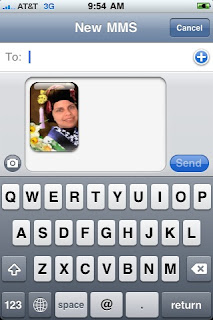
- Tab Send.


What other tips do you want to share about MMS?
An artsy person fulfilling my curiosity by figuring out the Hows & expressing them in some sort of creative outlet. I love art in all forms, technology, music, comedy, movies & travel.
September 22, 2009
Remember that text from last night?

If you think FML is funny then you haven't laughed hard enough yet. Now there is Texts from last night where users can send text messages to the site by using their area code and others can reply. The number you see before the text is the area code where the text message came from and if you see another text message right below it, it's because some one has responded to it.
You can leave a comment by clicking on reply or rate the messages as good night or bad night.
Here are a couple of them to give you a sample.
(775): I was too high to figure out which of the three doors would lead me to my classroom, so i sat down in the middle of the hallway and ate a twinkie.
(248): Is your delayed response due to the massive amount of judging going on?
(802): My social work teacher just told our class about her bicurios adventures in college
(516): is she hot?
(802): She is now
(702): what made you think it was a good idea to trust the girl that hides tequila in her backpack?
(204): My cousin's wedding had personal beer funnels for each table and a drinking game against the bride and groom. im sorry for ever calling you white trash
(504): She looks like Sash Grey but sounds like Fran Drescher. Advise.
(858): This concert is like a reunion of all my bad sex.
(203): a girl in my class is on a twilight fan site and running her fingers on the screen as edwards body comes up.
Oh and there is an app for this too!!! It's $0.99 for those that would like to know and you can downlad it here
 .
.Just remember, you might forget the text messages you send but will we?
An artsy person fulfilling my curiosity by figuring out the Hows & expressing them in some sort of creative outlet. I love art in all forms, technology, music, comedy, movies & travel.
September 09, 2009
How do I organize iPhone Apps in iTunes 9?

If you're like me then you probably have tons of apps that would be difficult to find if you had endless pages of pages. With iTunes 9, you can now organize them in folders which makes finding an app much more easier. I've compiled a couple of videos that will help you succeed at this. Enjoy!
How to Organize iPhone Apps in iTunes 9 Part 1
How to Organize iPhone Apps in iTunes Part 2
Now that you've learned how to do that, organize away.
An artsy person fulfilling my curiosity by figuring out the Hows & expressing them in some sort of creative outlet. I love art in all forms, technology, music, comedy, movies & travel.
August 26, 2009
Feel like stalking your ex? There is an app for that!!
Stalkers don't get your hopes up, it's just a parody.
An artsy person fulfilling my curiosity by figuring out the Hows & expressing them in some sort of creative outlet. I love art in all forms, technology, music, comedy, movies & travel.
July 13, 2009
iPhone Tip: How to e-mail, copy and delete multiple pictures
If you have an iPhone with OS 3.0 or even better the iPhone 3GS you know this upgrade has brought some cool features that all of us iPhone fanatics have been waiting for. In this post I'm going to give you two tips in one and these are related to the new features so enjoy.
Well with OS 3.0 you can now not only delete multiple pictures, you can also copy and better yet e-mail multiple pictures.
To e-mail multiple pictures:
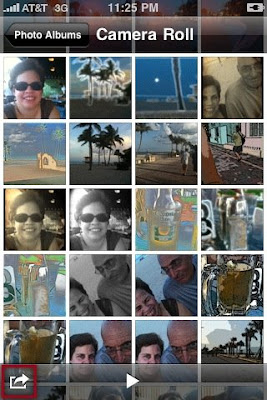
2. Touch select up to 5 pictures (you can only share up to 5 pictures at a time).
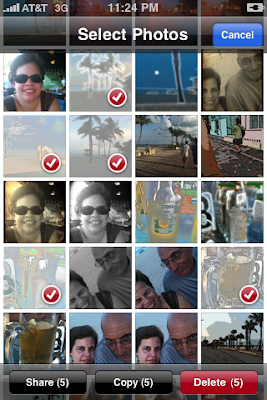
3. Press the Share button.
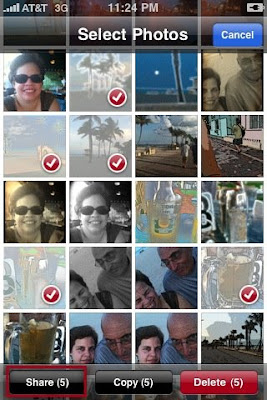
4. Press Email and you'll be taken into your default e-mail account in which your pictures will be added. All you have to do is add the recipient's e-mail address, the subject and press send.
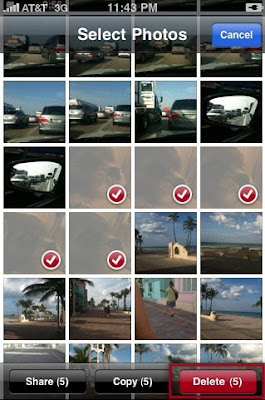
To delete pictures:
1. Follow the steps 1-2, and then press Delete.
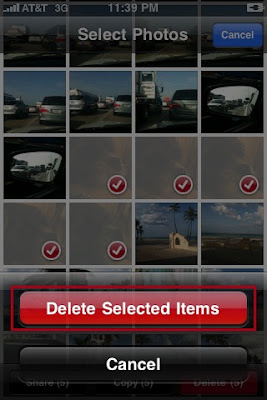
2. Press Delete Selected Items.
To copy pictures:
1. Follow steps 1-2, and then press Copy.
After you copy the pictures go to the application you want to use and paste them and that's it.
Tip 2:
If you noticed above you can only e-mail up to 5 pictures using the Share button but guess what? You can copy more than 5 pictures using the Copy button so in a way you can e-mail more than 5 pictures at a time.
To do this just copy the number of pictures you want from your photo album, and then go to your e-mail inbox and paste the pictures.
You see, where there is a will there is a way :O)
What tips do you want to share?
Until this upgrade you were only able to e-mail or delete one picture at a time which was kind of a pain especially if you took lots of pictures.
Well with OS 3.0 you can now not only delete multiple pictures, you can also copy and better yet e-mail multiple pictures.
Tip 1:
To e-mail multiple pictures:
1. Press the action arrow at the bottom of the photo album.
2. Touch select up to 5 pictures (you can only share up to 5 pictures at a time).
3. Press the Share button.
4. Press Email and you'll be taken into your default e-mail account in which your pictures will be added. All you have to do is add the recipient's e-mail address, the subject and press send.
To delete pictures:
1. Follow the steps 1-2, and then press Delete.
2. Press Delete Selected Items.
To copy pictures:
1. Follow steps 1-2, and then press Copy.
After you copy the pictures go to the application you want to use and paste them and that's it.
Tip 2:
If you noticed above you can only e-mail up to 5 pictures using the Share button but guess what? You can copy more than 5 pictures using the Copy button so in a way you can e-mail more than 5 pictures at a time.
To do this just copy the number of pictures you want from your photo album, and then go to your e-mail inbox and paste the pictures.
You see, where there is a will there is a way :O)
What tips do you want to share?
An artsy person fulfilling my curiosity by figuring out the Hows & expressing them in some sort of creative outlet. I love art in all forms, technology, music, comedy, movies & travel.
June 19, 2009
Yay, got my new iPhone 3GS
Even though I loved my 2nd generation iPhone, I'm glad I upgraded. The 3GS is awesome and I'm very impressed with the video quality. I'll be playing with the phone over the weekend so you might get some most post on my reviews.
What do you think about?
What do you think about?
An artsy person fulfilling my curiosity by figuring out the Hows & expressing them in some sort of creative outlet. I love art in all forms, technology, music, comedy, movies & travel.
June 18, 2009
iPhone Tip: How to extend your battery life
Have you noticed your iPhone battery doesn't last too long? One quick thing you can do to extend the battery life is to turn off Bluetooth. If you're not using a hands free kit, then you don't need to have Bluetooth turned on.
To turn it off go to Settings and General.
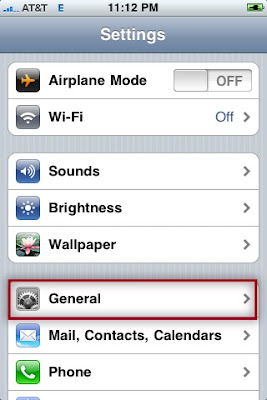
Tab Bluetooth and slide the button to OFF.
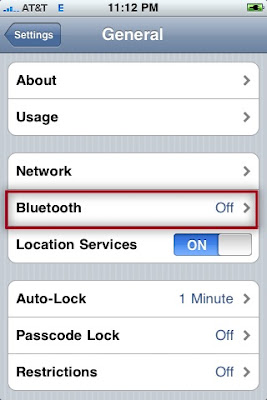
Bluetooth drains your battery so if you don't need it, don't turn it on :O)
To turn it off go to Settings and General.
Tab Bluetooth and slide the button to OFF.
Bluetooth drains your battery so if you don't need it, don't turn it on :O)
An artsy person fulfilling my curiosity by figuring out the Hows & expressing them in some sort of creative outlet. I love art in all forms, technology, music, comedy, movies & travel.
June 17, 2009
iPhone Tip: How to share links on your iPhone
Have you ever been surfing the Internet on your iPhone and stumble across a website you know one of your friends would like?
No problem, by pressing the plus sign (+) at the bottom of your Safari page and then tapping the Mail Link to this page you can share an e-mail link.
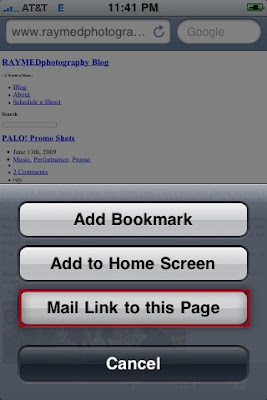
This will automatically start an e-mail in your default e-mail inbox, pre-populate the Subject line with the site name (depends on how the site is set up) and it will add the link in the body of the e-mail.
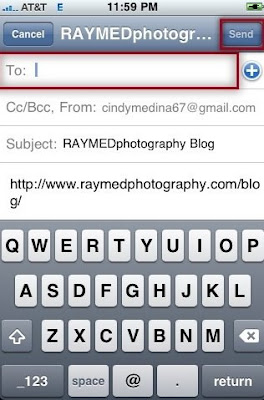
All you have to do is basically enter the recipient's e-mail address (s) and press Send. You can also add a message in the body of the e-mail but that's optional.
What tips do you have?
No problem, by pressing the plus sign (+) at the bottom of your Safari page and then tapping the Mail Link to this page you can share an e-mail link.
This will automatically start an e-mail in your default e-mail inbox, pre-populate the Subject line with the site name (depends on how the site is set up) and it will add the link in the body of the e-mail.
All you have to do is basically enter the recipient's e-mail address (s) and press Send. You can also add a message in the body of the e-mail but that's optional.
What tips do you have?
An artsy person fulfilling my curiosity by figuring out the Hows & expressing them in some sort of creative outlet. I love art in all forms, technology, music, comedy, movies & travel.
June 07, 2009
iPhone Tip: How to scroll through your app pages
I know one of the coolest things people first liked about the iPhone is that you swipe your finger on the screen to do numerous functions. One of the times you swipe is to scroll through the different pages of applications you have and if you're like me you probably have lots of them.
Well here is a quick tip on another way of scrolling through your pages, just tap anywhere on the line of dots that indicate you have multiple pages.
Well here is a quick tip on another way of scrolling through your pages, just tap anywhere on the line of dots that indicate you have multiple pages.

BTW, this works when scrolling through different pages of Safari and where ever you see the lines of dots.
(Just added after the 3.0 upgrade 6/17/2009.)
As you've probably heard or seen already with the upgrade to 3.0 you can now search across your iPhone. A search page has been added to your iPhone and to view it you can swipe your screen to the right, it's the first page on your iPhone. You can also get to it by tapping on the line of dotts. The new search page is indicated by a magnifying glass to the left of the line of dotts.

Or you can press Home to toggle from and to your first app page to the search page.
Do you have a quick tip to share?
An artsy person fulfilling my curiosity by figuring out the Hows & expressing them in some sort of creative outlet. I love art in all forms, technology, music, comedy, movies & travel.
May 26, 2009
Will it Blend?
You've probably heard of Tom Dickson who has a very popular show on YouTube called "Will it blend". His show consist of throwing things into the blender and seeing how they come out. Well he was asked by the viewers to blend an iPhone and so he did. This video is the episode in which he blends it. If you're an iPhone fanatic like me, this video will hurt you as much as it hurt me.
You can also view Tom's videos through the "Will it blend" iPhone app.
You can also view Tom's videos through the "Will it blend" iPhone app.
An artsy person fulfilling my curiosity by figuring out the Hows & expressing them in some sort of creative outlet. I love art in all forms, technology, music, comedy, movies & travel.
April 12, 2009
App Top List: 3 More iPhone Photo Apps for your collection
If you're into photography I suggest you search the app store constantly because a lot of apps are being developed to enhance your photos. I've already reviewed my Top 5 iPhone Photo Apps back in January and now I review 3 more photos apps for your collection.
Photogene - wouldn't it be great to have PhotoShop available on your iPhone? Of course it would, well it's not available yet but Photogene is. With Photogene you can crop, apply filters, color adjustment, exposure, and saturation. You can also enhance your photos with effects, frames, borders, and even rotate the image. You have the option to edit photos from your library or taking a new one. Photogene brings photo editing to another level and it's just so simple to use. The app is $2.99 but it's well worth it.
Here are a couple of photo enhancements done with Photogene.
This photo was cropped, and a border was added.

Captions were added in seconds to explain to my friends something that was happening at the moment.

Check out the video from our friends at AppVee so you can see more features available.
Download Photogene.
ColorSplash - With this app, you can give your photos a dramatic black and white look while keeping the original color in certain areas. After the photo is converted to black and white you can use your fingers as a brush to bring back the original color in certain areas, you can even zoom in and out (using pinching) to make the process easier. You have the option to edit a photo from the library or take a new one as well. This app is only $1.99 but it's a great addition in your iPhone.
Here is an example of a photo enhanced with ColorSplash.

Check out this video from the App Store Reviewer to see more features available.
Download ColorSpash.
PhotoArtist - Most of the reviews I've seen on this app are not great but I think it's because the app is being confused with a photo editor and it's not. The name implies it all Photo Art. You can select any of the photos in your library or take a new one and then apply any of the following six filters: cartoon, watercolor, illustration, halftone, mono, and pen and your photo is turned into art. It's not a photo editor like Photoshop or like the Photogene app reviewed in this post. It converts your photo's into artwork as the name indicates and it does a great job at it. It's only $1.99 and I think it's well worth it. Your artwork is saved in your library or you can opt to share them on PhotoShare.
Here are a couple of examples:
Illustration filter:

Watercolor filter:

Pen filter:

Download PhotoArtist.
I hope this quick review is helpful to you. If you've use these apps let us know what you think or even better share your photos with us.
Photogene - wouldn't it be great to have PhotoShop available on your iPhone? Of course it would, well it's not available yet but Photogene is. With Photogene you can crop, apply filters, color adjustment, exposure, and saturation. You can also enhance your photos with effects, frames, borders, and even rotate the image. You have the option to edit photos from your library or taking a new one. Photogene brings photo editing to another level and it's just so simple to use. The app is $2.99 but it's well worth it.
Here are a couple of photo enhancements done with Photogene.
This photo was cropped, and a border was added.
Captions were added in seconds to explain to my friends something that was happening at the moment.
Check out the video from our friends at AppVee so you can see more features available.
Download Photogene.
ColorSplash - With this app, you can give your photos a dramatic black and white look while keeping the original color in certain areas. After the photo is converted to black and white you can use your fingers as a brush to bring back the original color in certain areas, you can even zoom in and out (using pinching) to make the process easier. You have the option to edit a photo from the library or take a new one as well. This app is only $1.99 but it's a great addition in your iPhone.
Here is an example of a photo enhanced with ColorSplash.

Check out this video from the App Store Reviewer to see more features available.
Download ColorSpash.
PhotoArtist - Most of the reviews I've seen on this app are not great but I think it's because the app is being confused with a photo editor and it's not. The name implies it all Photo Art. You can select any of the photos in your library or take a new one and then apply any of the following six filters: cartoon, watercolor, illustration, halftone, mono, and pen and your photo is turned into art. It's not a photo editor like Photoshop or like the Photogene app reviewed in this post. It converts your photo's into artwork as the name indicates and it does a great job at it. It's only $1.99 and I think it's well worth it. Your artwork is saved in your library or you can opt to share them on PhotoShare.
Here are a couple of examples:
Illustration filter:

Watercolor filter:

Pen filter:

Download PhotoArtist.
I hope this quick review is helpful to you. If you've use these apps let us know what you think or even better share your photos with us.
An artsy person fulfilling my curiosity by figuring out the Hows & expressing them in some sort of creative outlet. I love art in all forms, technology, music, comedy, movies & travel.
Subscribe to:
Posts (Atom)