If you're a Social Media enthusiast like me you probably would be interested in knowing about this one day Social Media In-A-Day class.
The speaker is Mari Smith - FastCompany.com dubbed Mari the "Pied Piper of the OnlineWorld."
I'm sure you're aware of all the buzz and pressure to integrate social media into your marketing efforts. But are you using sites like Facebook, Twitter, LinkedIn, YouTube and more to their full potential?
If you're not getting the results you want from your social media marketing, then you'll definitely want to check out this event:
Social Media In-A-Day with Mari Smith
Friday, August 14, 2009
8am to 8pm PST
Here's the coolest part:
There are TWO ways to attend: (1) LIVE in San Diego if you live locally or are happy to fly out, or (2) VIRTUALLY via webinar room anywhere in the world!
You'll be able to see Mari and the other class participants via webcam and participate via computer headset/microphone.
Mari will be covering everything you need to really accelerate your social media success using the top platforms along with all kinds of ancillary tools, sites and techniques.
If you don't know Mari yet, you're in for a treat! She's a self-described "bubbly Scottish-Canadian" and has a fun accent. Her strong background in the world of relationships and internet marketing, followed by over two years immersed in social media, make her one of the leading authorities to learn from. She's a dynamic speaker and excellent trainer.
Definitely check out this incredible event with a ton of valuable bonuses, including Mari's 8-CD Quick Start Social Media Kit and a complimentary private strategy session.
As a bonus, get Mari's free HOT new 3-in-1 Facebook Tips Report.

August 05, 2009
Social Media MBA in a day class

 An artsy person fulfilling my curiosity by figuring out the Hows & expressing them in some sort of creative outlet. I love art in all forms, technology, music, comedy, movies & travel.
July 13, 2009
iPhone Tip: How to e-mail, copy and delete multiple pictures
If you have an iPhone with OS 3.0 or even better the iPhone 3GS you know this upgrade has brought some cool features that all of us iPhone fanatics have been waiting for. In this post I'm going to give you two tips in one and these are related to the new features so enjoy.
Well with OS 3.0 you can now not only delete multiple pictures, you can also copy and better yet e-mail multiple pictures.
To e-mail multiple pictures:
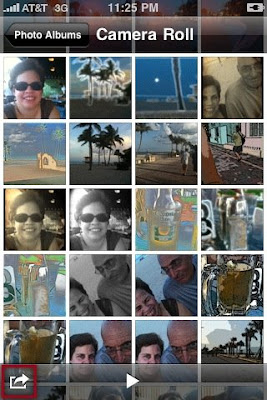
2. Touch select up to 5 pictures (you can only share up to 5 pictures at a time).
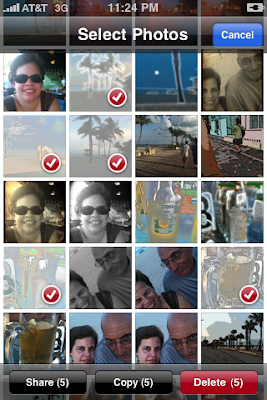
3. Press the Share button.
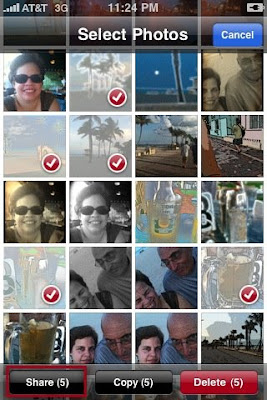
4. Press Email and you'll be taken into your default e-mail account in which your pictures will be added. All you have to do is add the recipient's e-mail address, the subject and press send.
To delete pictures:
1. Follow the steps 1-2, and then press Delete.
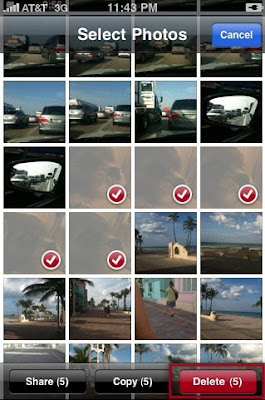
2. Press Delete Selected Items.
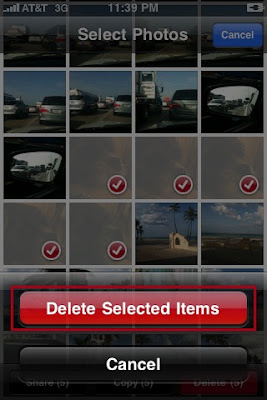
To copy pictures:
1. Follow steps 1-2, and then press Copy.
After you copy the pictures go to the application you want to use and paste them and that's it.
Tip 2:
If you noticed above you can only e-mail up to 5 pictures using the Share button but guess what? You can copy more than 5 pictures using the Copy button so in a way you can e-mail more than 5 pictures at a time.
To do this just copy the number of pictures you want from your photo album, and then go to your e-mail inbox and paste the pictures.
You see, where there is a will there is a way :O)
What tips do you want to share?

Until this upgrade you were only able to e-mail or delete one picture at a time which was kind of a pain especially if you took lots of pictures.
Well with OS 3.0 you can now not only delete multiple pictures, you can also copy and better yet e-mail multiple pictures.
Tip 1:
To e-mail multiple pictures:
1. Press the action arrow at the bottom of the photo album.
2. Touch select up to 5 pictures (you can only share up to 5 pictures at a time).
3. Press the Share button.
4. Press Email and you'll be taken into your default e-mail account in which your pictures will be added. All you have to do is add the recipient's e-mail address, the subject and press send.
To delete pictures:
1. Follow the steps 1-2, and then press Delete.
2. Press Delete Selected Items.
To copy pictures:
1. Follow steps 1-2, and then press Copy.
After you copy the pictures go to the application you want to use and paste them and that's it.
Tip 2:
If you noticed above you can only e-mail up to 5 pictures using the Share button but guess what? You can copy more than 5 pictures using the Copy button so in a way you can e-mail more than 5 pictures at a time.
To do this just copy the number of pictures you want from your photo album, and then go to your e-mail inbox and paste the pictures.
You see, where there is a will there is a way :O)
What tips do you want to share?
An artsy person fulfilling my curiosity by figuring out the Hows & expressing them in some sort of creative outlet. I love art in all forms, technology, music, comedy, movies & travel.
June 19, 2009
Yay, got my new iPhone 3GS
Even though I loved my 2nd generation iPhone, I'm glad I upgraded. The 3GS is awesome and I'm very impressed with the video quality. I'll be playing with the phone over the weekend so you might get some most post on my reviews.
What do you think about?
What do you think about?
An artsy person fulfilling my curiosity by figuring out the Hows & expressing them in some sort of creative outlet. I love art in all forms, technology, music, comedy, movies & travel.
June 18, 2009
iPhone Tip: How to extend your battery life
Have you noticed your iPhone battery doesn't last too long? One quick thing you can do to extend the battery life is to turn off Bluetooth. If you're not using a hands free kit, then you don't need to have Bluetooth turned on.
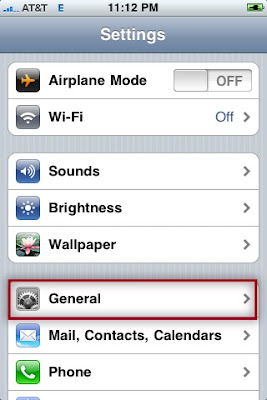
To turn it off go to Settings and General.
Tab Bluetooth and slide the button to OFF.
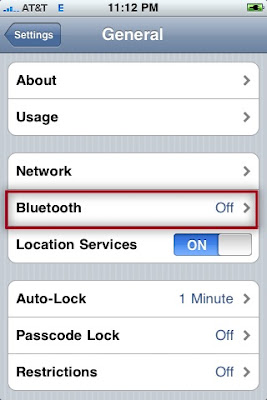
Bluetooth drains your battery so if you don't need it, don't turn it on :O)
To turn it off go to Settings and General.
Tab Bluetooth and slide the button to OFF.
Bluetooth drains your battery so if you don't need it, don't turn it on :O)
An artsy person fulfilling my curiosity by figuring out the Hows & expressing them in some sort of creative outlet. I love art in all forms, technology, music, comedy, movies & travel.
June 17, 2009
iPhone Tip: How to share links on your iPhone
Have you ever been surfing the Internet on your iPhone and stumble across a website you know one of your friends would like?
No problem, by pressing the plus sign (+) at the bottom of your Safari page and then tapping the Mail Link to this page you can share an e-mail link.

This will automatically start an e-mail in your default e-mail inbox, pre-populate the Subject line with the site name (depends on how the site is set up) and it will add the link in the body of the e-mail.

All you have to do is basically enter the recipient's e-mail address (s) and press Send. You can also add a message in the body of the e-mail but that's optional.
What tips do you have?
No problem, by pressing the plus sign (+) at the bottom of your Safari page and then tapping the Mail Link to this page you can share an e-mail link.
This will automatically start an e-mail in your default e-mail inbox, pre-populate the Subject line with the site name (depends on how the site is set up) and it will add the link in the body of the e-mail.
All you have to do is basically enter the recipient's e-mail address (s) and press Send. You can also add a message in the body of the e-mail but that's optional.
What tips do you have?
An artsy person fulfilling my curiosity by figuring out the Hows & expressing them in some sort of creative outlet. I love art in all forms, technology, music, comedy, movies & travel.
June 14, 2009
Video Review: Share videos, pictures, and URLs on Twitter with Tweetube
Here is another great service that allows you share more than just text and pictures on Twitter. With Tweetube you can also share webcam videos, YouTube videos and website URLs on Twitter and all for free.
So sit back and play our video to learn how this service works.
By the way, if anyone has a Mac and a webcam and would like to show us how sharing a webcam video works on Mac feel free to add your video URL as a comment. Sharing is always encouraged :O)
Follow me on Twitter: http://www.twitter.com/cynthiamedinam
Have you used this service? Or what service do you use and why?
So sit back and play our video to learn how this service works.
By the way, if anyone has a Mac and a webcam and would like to show us how sharing a webcam video works on Mac feel free to add your video URL as a comment. Sharing is always encouraged :O)
Follow me on Twitter: http://www.twitter.com/cynthiamedinam
Have you used this service? Or what service do you use and why?
An artsy person fulfilling my curiosity by figuring out the Hows & expressing them in some sort of creative outlet. I love art in all forms, technology, music, comedy, movies & travel.
June 08, 2009
iPhone Tip: Surfing the Internet with less keystrokes
When surfing the Internet on your iPhone you can omit part of the web address and still get to where you need to. For example, if you want to go to http://www.gmail.com/, you can omit the www and also the .com portion:


Another quick tip:
When you need to visit a .edu, .org or .net site you can press down the .com key and it will display these other options which will avoid some extra keystrokes.

Do you have some tips you want to share?
Your iPhone is so smart that it will direct you to http://www.gmail.com/.
Another quick tip:
When you need to visit a .edu, .org or .net site you can press down the .com key and it will display these other options which will avoid some extra keystrokes.
Do you have some tips you want to share?
An artsy person fulfilling my curiosity by figuring out the Hows & expressing them in some sort of creative outlet. I love art in all forms, technology, music, comedy, movies & travel.
June 07, 2009
iPhone Tip: How to scroll through your app pages
I know one of the coolest things people first liked about the iPhone is that you swipe your finger on the screen to do numerous functions. One of the times you swipe is to scroll through the different pages of applications you have and if you're like me you probably have lots of them.
Well here is a quick tip on another way of scrolling through your pages, just tap anywhere on the line of dots that indicate you have multiple pages.
Well here is a quick tip on another way of scrolling through your pages, just tap anywhere on the line of dots that indicate you have multiple pages.

BTW, this works when scrolling through different pages of Safari and where ever you see the lines of dots.
(Just added after the 3.0 upgrade 6/17/2009.)
As you've probably heard or seen already with the upgrade to 3.0 you can now search across your iPhone. A search page has been added to your iPhone and to view it you can swipe your screen to the right, it's the first page on your iPhone. You can also get to it by tapping on the line of dotts. The new search page is indicated by a magnifying glass to the left of the line of dotts.

Or you can press Home to toggle from and to your first app page to the search page.
Do you have a quick tip to share?
An artsy person fulfilling my curiosity by figuring out the Hows & expressing them in some sort of creative outlet. I love art in all forms, technology, music, comedy, movies & travel.
Subscribe to:
Posts (Atom)