You've probably heard of Tom Dickson who has a very popular show on YouTube called "Will it blend". His show consist of throwing things into the blender and seeing how they come out. Well he was asked by the viewers to blend an iPhone and so he did. This video is the episode in which he blends it. If you're an iPhone fanatic like me, this video will hurt you as much as it hurt me.
You can also view Tom's videos through the "Will it blend" iPhone app.

May 26, 2009
Will it Blend?

 An artsy person fulfilling my curiosity by figuring out the Hows & expressing them in some sort of creative outlet. I love art in all forms, technology, music, comedy, movies & travel.
May 15, 2009
Review: Sending video messages became easier with Eyejot
Wouldn't it be great to quickly create video messages and send them via e-mail without having to actually use a camcorder and download files? Guess what? You can. There is a service called Eyejot which let's you create video messages and e-mail them to anyone. All you need is a microphone (which can be built in your PC or laptop) and a web cam. Sorry you do need a web cam because your image has to be recorded some how, right? But that's it!
With Eyejot you can import your contact information from several address books or manually add them. You can also create contact groups in case you want to video message a group of people.
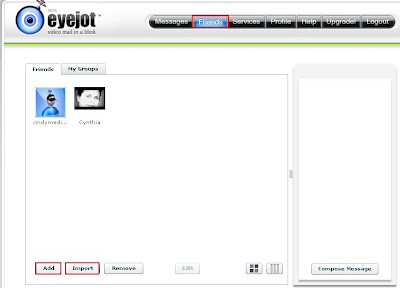
To start recording, select the person or group you want to send a message too and click Compose Message.
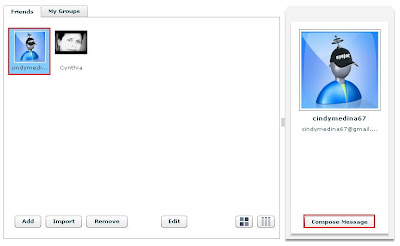
Once you do that the service will read your web cam and the following window will display.
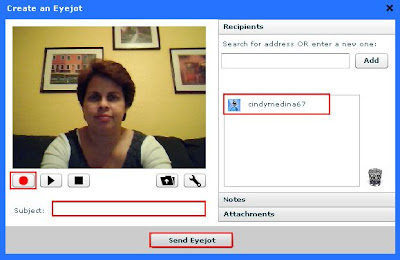 BTW, it's not mandatory to select a contact before you start recording, you can add the contact information from the Create an Eyejot window by either searching for the contact name or entering the actual e-mail address. If you select a contact from your account, the person's e-mail (s) will be added to the right side of the screen. To record your message press the record button, and after you're done press stop. Like all recording devices you can play the video to review it and if you're not happy with it press record again.
After you're done recording just enter the Subject, and press Send Eyejot. The recipient will receive an e-mail with the video embedded in it so they can play it right from there or they can click the link included in the e-mail to watch video. This is a sample of the e-mail.
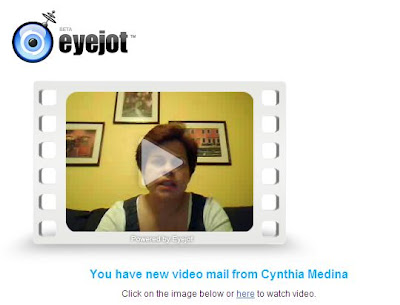
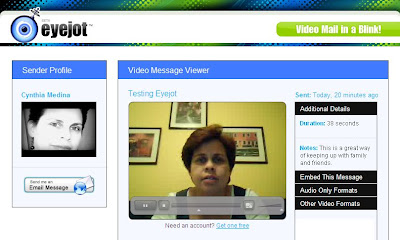
If the recipient clicks on the watch video link in the e-mail they will be sent a video page where they also have the option to embed the video.
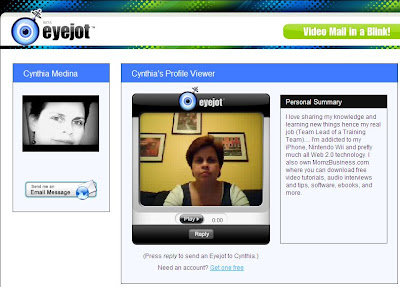
As all web 2.0 services your account comes with a profile page where you can showcase your about me information including a video introduction.
Eyejot has several types of accounts and one of them is free. With their free account you are limited to creating 60 second videos. It you feel the need to create longer videos you can upgrade to their paying account which offers 5 minute long videos.
The service works pretty well and it really comes in handy to keep up with family members and friends that live far away. I only wish my grandma had a computer to be able to see her more often :O(
Another way you can use this service is to market your business. Think about, a short and sweet personal message sent to your mailing list instead of a cold text e-mail? Wouldn't that give your message a more personal touch?
Here is a sample video message I created to test the service.
I personally give it a 4 star rating, and really recommend it but don't just take my word for it. Try it out, it's free. Have you use this service or any other service similar to this? What has been your experience.
BTW, thanks to my Twitter friend AgustinaP for mentioning this service.

With Eyejot you can import your contact information from several address books or manually add them. You can also create contact groups in case you want to video message a group of people.
To start recording, select the person or group you want to send a message too and click Compose Message.
Once you do that the service will read your web cam and the following window will display.
BTW, it's not mandatory to select a contact before you start recording, you can add the contact information from the Create an Eyejot window by either searching for the contact name or entering the actual e-mail address. If you select a contact from your account, the person's e-mail (s) will be added to the right side of the screen. To record your message press the record button, and after you're done press stop. Like all recording devices you can play the video to review it and if you're not happy with it press record again.After you're done recording just enter the Subject, and press Send Eyejot. The recipient will receive an e-mail with the video embedded in it so they can play it right from there or they can click the link included in the e-mail to watch video. This is a sample of the e-mail.
If the recipient clicks on the watch video link in the e-mail they will be sent a video page where they also have the option to embed the video.
As all web 2.0 services your account comes with a profile page where you can showcase your about me information including a video introduction.
Eyejot has several types of accounts and one of them is free. With their free account you are limited to creating 60 second videos. It you feel the need to create longer videos you can upgrade to their paying account which offers 5 minute long videos.
The service works pretty well and it really comes in handy to keep up with family members and friends that live far away. I only wish my grandma had a computer to be able to see her more often :O(
Another way you can use this service is to market your business. Think about, a short and sweet personal message sent to your mailing list instead of a cold text e-mail? Wouldn't that give your message a more personal touch?
Here is a sample video message I created to test the service.
I personally give it a 4 star rating, and really recommend it but don't just take my word for it. Try it out, it's free. Have you use this service or any other service similar to this? What has been your experience.
BTW, thanks to my Twitter friend AgustinaP for mentioning this service.
An artsy person fulfilling my curiosity by figuring out the Hows & expressing them in some sort of creative outlet. I love art in all forms, technology, music, comedy, movies & travel.
May 02, 2009
Free Alternatives to PhotoShop, MsOffice and Antivirus/Security software
In this day and age there are so many programs available for free that it's just not necessary to spend any money. In this post I'm giving you some alternatives to PhotoShop, MsOffice, and Antivirus/Security programs that will be of great benefit.
Two free alternatives to MsOffice Suite
OpenOffice - This suite has applications that look very similar to MsOffice. They have Writer (Word), Impress (PowerPoint), Math (Excel), and Base (Access).
The best part is that you can even save your documents as MsOffice documents so anyone with MsOffice can open and work on the documents. It's a very easy suite to learn if you know MsOffice because even the menus look similar.
Just like MsOffice, OpenOffice has templates available within the applications and also has more available online for you to download for free.
Google Docs - Is a free suite that has also similar types of documents as MsOffice as well.
This suite is available by logging into your online Google account and any documents you create are saved online. The great thing about Google Docs is that you also have the option to save the documents on your PC as either as PDF, PPT, Doc, XLS and other types. Just like MsOffice, Google Docs has over 400 templates available for you to use.
You can also manage your documents through facebook by adding the Google Docs application. If the login credentials are the same for facebook and Google when you add the application it will automatically interface with your Google Docs account.
Another great feature Google Docs is the share feature. You can share your documents with others and allow them to edit the documents.
Since this is an online application you also have the advantage of being able to organize your documents by folders just like in your e-mail inbox.
Check out Google Docs in Plain English video.
Two free alternatives to PhotoShop
PhotoShop is a great application for those that really need to edit images and photos. For the average person that only needs to do some minor changes and effects to their photos or graphics there are other solutions that work very well and that are free.
Picnik - This is a great online photo and graphic editor. They have a free version and also a paid version ($24.95 a year) but trust me, the free version is enough.
With Picnik you can crop, resize, rotate, apply special effects, fine-tune your results and all of this is working from on your browser, there is nothing to download.
You can select photos available either on your PC or available on any of your accounts in MySpace, flickr, facebook, photobucket, Picasa, Webshots, and Webs.
Everything is saved to your online Library, but you also have the option to save it on your PC as well or to share it on other sites such as Twitter, facebook, flickr, etc...
Picnik is available as an application on facebook and you can manage both your online account photos and your facebook photos. Just remember to Sign in if you need to access your online photos.
SplashUp - is another great alternative to PhotoShop and it's probably the one that has the most common features as well. SplashUp is another online editor with a twist. Sign up for a free account but don't be discouraged by the tools showcased on the home page, that's nothing.
When you click on Jump Right In on the Home page, a new window pops up with the editor which looks very similar to it's contender.
The nifty online editor has multiple image editing, pixel-level control and layers. You can work on images located on your PC or on facebook, Picasa, flickr, SmugMug, photobucket or display an image by URL. You can also save your images on these sites as well.
Three Free Alternatives for Antivirus/Security Software
There are several free alternatives available that work just as good as any paid Antivirus and Security software.
The following two were recommended by Consumer Reports as Best Buys even though they are free :O)
Avira AntiVir Personal - This software includes AntiSpam, AntiSpyware, Firewall, EMail protection and Parental control.
Microsoft Windows Defender - This software protects your PC against pop-ups, slow performance and security threats caused by spyware and other potentially unwanted software. This comes automatically with Windows Vista and it's also compatible to Windows XP.
Avast Home Edition - Great full AntiVirus software. The only thing some people may not like is that when you initially register the software you receive a license key only good for 60 days and then you need to register again to get license key good for 1 year, and you must register annually after that. But hey the software is free!
Some recommendations for finding free software:
Before you buy any software search on sites like download.com, tucows.com, and Freeware Files. You can also do a search on Google for example, search for free antivirus software. Chances are you will find a free version of it.
After you find names of free software, search for reviews on it. Even though it's free you don't want to use something that doesn't work, right?
You can find a bigger list of free alternative software at Web 2.0 Applications Reviews wiki.
What free alternatives do you use? Or tell us your experience if you've used any of the software mentioned in the post.
Two free alternatives to MsOffice Suite
OpenOffice - This suite has applications that look very similar to MsOffice. They have Writer (Word), Impress (PowerPoint), Math (Excel), and Base (Access).
The best part is that you can even save your documents as MsOffice documents so anyone with MsOffice can open and work on the documents. It's a very easy suite to learn if you know MsOffice because even the menus look similar.
Just like MsOffice, OpenOffice has templates available within the applications and also has more available online for you to download for free.
Google Docs - Is a free suite that has also similar types of documents as MsOffice as well.
This suite is available by logging into your online Google account and any documents you create are saved online. The great thing about Google Docs is that you also have the option to save the documents on your PC as either as PDF, PPT, Doc, XLS and other types. Just like MsOffice, Google Docs has over 400 templates available for you to use.
You can also manage your documents through facebook by adding the Google Docs application. If the login credentials are the same for facebook and Google when you add the application it will automatically interface with your Google Docs account.
Another great feature Google Docs is the share feature. You can share your documents with others and allow them to edit the documents.
Since this is an online application you also have the advantage of being able to organize your documents by folders just like in your e-mail inbox.
Check out Google Docs in Plain English video.
Two free alternatives to PhotoShop
PhotoShop is a great application for those that really need to edit images and photos. For the average person that only needs to do some minor changes and effects to their photos or graphics there are other solutions that work very well and that are free.
Picnik - This is a great online photo and graphic editor. They have a free version and also a paid version ($24.95 a year) but trust me, the free version is enough.
With Picnik you can crop, resize, rotate, apply special effects, fine-tune your results and all of this is working from on your browser, there is nothing to download.
You can select photos available either on your PC or available on any of your accounts in MySpace, flickr, facebook, photobucket, Picasa, Webshots, and Webs.
Everything is saved to your online Library, but you also have the option to save it on your PC as well or to share it on other sites such as Twitter, facebook, flickr, etc...
Picnik is available as an application on facebook and you can manage both your online account photos and your facebook photos. Just remember to Sign in if you need to access your online photos.
SplashUp - is another great alternative to PhotoShop and it's probably the one that has the most common features as well. SplashUp is another online editor with a twist. Sign up for a free account but don't be discouraged by the tools showcased on the home page, that's nothing.
There are several free alternatives available that work just as good as any paid Antivirus and Security software.
The following two were recommended by Consumer Reports as Best Buys even though they are free :O)
Avira AntiVir Personal - This software includes AntiSpam, AntiSpyware, Firewall, EMail protection and Parental control.
Microsoft Windows Defender - This software protects your PC against pop-ups, slow performance and security threats caused by spyware and other potentially unwanted software. This comes automatically with Windows Vista and it's also compatible to Windows XP.
Avast Home Edition - Great full AntiVirus software. The only thing some people may not like is that when you initially register the software you receive a license key only good for 60 days and then you need to register again to get license key good for 1 year, and you must register annually after that. But hey the software is free!
Some recommendations for finding free software:
Before you buy any software search on sites like download.com, tucows.com, and Freeware Files. You can also do a search on Google for example, search for free antivirus software. Chances are you will find a free version of it.
After you find names of free software, search for reviews on it. Even though it's free you don't want to use something that doesn't work, right?
You can find a bigger list of free alternative software at Web 2.0 Applications Reviews wiki.
What free alternatives do you use? Or tell us your experience if you've used any of the software mentioned in the post.
An artsy person fulfilling my curiosity by figuring out the Hows & expressing them in some sort of creative outlet. I love art in all forms, technology, music, comedy, movies & travel.
April 12, 2009
App Top List: 3 More iPhone Photo Apps for your collection
If you're into photography I suggest you search the app store constantly because a lot of apps are being developed to enhance your photos. I've already reviewed my Top 5 iPhone Photo Apps back in January and now I review 3 more photos apps for your collection.
Photogene - wouldn't it be great to have PhotoShop available on your iPhone? Of course it would, well it's not available yet but Photogene is. With Photogene you can crop, apply filters, color adjustment, exposure, and saturation. You can also enhance your photos with effects, frames, borders, and even rotate the image. You have the option to edit photos from your library or taking a new one. Photogene brings photo editing to another level and it's just so simple to use. The app is $2.99 but it's well worth it.
Here are a couple of photo enhancements done with Photogene.
This photo was cropped, and a border was added.

Captions were added in seconds to explain to my friends something that was happening at the moment.

Check out the video from our friends at AppVee so you can see more features available.
Download Photogene.
ColorSplash - With this app, you can give your photos a dramatic black and white look while keeping the original color in certain areas. After the photo is converted to black and white you can use your fingers as a brush to bring back the original color in certain areas, you can even zoom in and out (using pinching) to make the process easier. You have the option to edit a photo from the library or take a new one as well. This app is only $1.99 but it's a great addition in your iPhone.
Here is an example of a photo enhanced with ColorSplash.

Check out this video from the App Store Reviewer to see more features available.
Download ColorSpash.
PhotoArtist - Most of the reviews I've seen on this app are not great but I think it's because the app is being confused with a photo editor and it's not. The name implies it all Photo Art. You can select any of the photos in your library or take a new one and then apply any of the following six filters: cartoon, watercolor, illustration, halftone, mono, and pen and your photo is turned into art. It's not a photo editor like Photoshop or like the Photogene app reviewed in this post. It converts your photo's into artwork as the name indicates and it does a great job at it. It's only $1.99 and I think it's well worth it. Your artwork is saved in your library or you can opt to share them on PhotoShare.
Here are a couple of examples:
Illustration filter:

Watercolor filter:

Pen filter:

Download PhotoArtist.
I hope this quick review is helpful to you. If you've use these apps let us know what you think or even better share your photos with us.
Photogene - wouldn't it be great to have PhotoShop available on your iPhone? Of course it would, well it's not available yet but Photogene is. With Photogene you can crop, apply filters, color adjustment, exposure, and saturation. You can also enhance your photos with effects, frames, borders, and even rotate the image. You have the option to edit photos from your library or taking a new one. Photogene brings photo editing to another level and it's just so simple to use. The app is $2.99 but it's well worth it.
Here are a couple of photo enhancements done with Photogene.
This photo was cropped, and a border was added.
Captions were added in seconds to explain to my friends something that was happening at the moment.
Check out the video from our friends at AppVee so you can see more features available.
Download Photogene.
ColorSplash - With this app, you can give your photos a dramatic black and white look while keeping the original color in certain areas. After the photo is converted to black and white you can use your fingers as a brush to bring back the original color in certain areas, you can even zoom in and out (using pinching) to make the process easier. You have the option to edit a photo from the library or take a new one as well. This app is only $1.99 but it's a great addition in your iPhone.
Here is an example of a photo enhanced with ColorSplash.

Check out this video from the App Store Reviewer to see more features available.
Download ColorSpash.
PhotoArtist - Most of the reviews I've seen on this app are not great but I think it's because the app is being confused with a photo editor and it's not. The name implies it all Photo Art. You can select any of the photos in your library or take a new one and then apply any of the following six filters: cartoon, watercolor, illustration, halftone, mono, and pen and your photo is turned into art. It's not a photo editor like Photoshop or like the Photogene app reviewed in this post. It converts your photo's into artwork as the name indicates and it does a great job at it. It's only $1.99 and I think it's well worth it. Your artwork is saved in your library or you can opt to share them on PhotoShare.
Here are a couple of examples:
Illustration filter:

Watercolor filter:

Pen filter:

Download PhotoArtist.
I hope this quick review is helpful to you. If you've use these apps let us know what you think or even better share your photos with us.
An artsy person fulfilling my curiosity by figuring out the Hows & expressing them in some sort of creative outlet. I love art in all forms, technology, music, comedy, movies & travel.
March 29, 2009
App Video Review: Get prices and reviews of CDs, Books, DVDs, or video games by taking a snapshot - Snaptell

Snaptell is a very handy app. With this app you take snapshots of the cover of any CD, DVD, Book, or video game sold in the U.S. and it will automatically locate it for you. The app will provide you with the online and local price for stores like Amazon and Barnes and Nobles, Google search for prices and reviews, Yahoo search results, eBay and half.com links, and even articles in Wikipedia when available. You can even complete purchases through the app.
I took snapshots of old and new movies, books, and CDs and this app did not fail once. This app uses image recognition technology developed by Snaptell.com to match the image against product images. Pretty soon they will also offer this service for International products.
So can you now imagine yourself going to Barnes and Nobles, taking a snapshot of a book cover to check out the competition's prices and the reviews, and then making your decision on whether to buy it or not?
Here is a video from our friends from AppVee.com that shows you how Snaptell works.
Download Snaptell.
Oh and did I mention this handy app is free? Have you used it? Tell us your experience with this app.
An artsy person fulfilling my curiosity by figuring out the Hows & expressing them in some sort of creative outlet. I love art in all forms, technology, music, comedy, movies & travel.
February 15, 2009
App Video Review: Creating videos on your iPhone - Animoto
 Animoto is a service that allows you to create free short videos by using your still life pictures. Their online service also allows you to create and download unlimited full-length videos for a minimal yearly fee. Recently they made their service available on the iPhone through the new Animoto app.
How does it work?
Well first let's tell you about the navigation. Animoto has two main tabs, Create New Video and My Videos. I think the tabs are self explanatory, right?
To create a video you go to the Create New Video tab, and you'll be prompted to select 8-12 pictures from your library. One thing you need to know is that you can't take new pictures with Animoto, you can only use existing ones.
After you select the pictures you're prompted to select the music track. Animoto has a good choice of music you can use. After you're done selecting your pictures and music then all you need to do is name your video, and press Create Video.
You'll need to wait about 4 minutes for the video to render but I know you'll be impressed with the results. Animoto has a way of displaying your pictures with the beat of the music that is just simply cool and no two videos are the same even if you use the same pictures.
After the video is created you can share it with your friends via e-mail, edit the pictures or music, remix it or delete it.
The only issue I have is that you can't synchronize the videos you create on your iPhone with your online account but there is a workaround to save your online account videos to your iPhone. If you go to Animoto.com on your iPhone and play a video from your online account, you'll have the option to save it into the app :O)
The creation of full-length videos is not available through the app but that's understandable. This app is great just like their online service, and it's free so I recommend you try it.
Check out this video for a quick look at Animoto (courtesy of AppVee).
Download Animoto or visit the Animoto site.
An artsy person fulfilling my curiosity by figuring out the Hows & expressing them in some sort of creative outlet. I love art in all forms, technology, music, comedy, movies & travel.
February 14, 2009
App Video Review: Quip - Sending multimedia messages on the iPhone

How does it work?
After you access Quip you can either take a new picture or choose from your iPhone library. Then select the contact, add text (optional) and send.
The recipient gets a text message with a clickable link, in our case with a touchable link. No need for username and password. So guess what iPhone users? No more need for those messages with easy to enter username/password that we are all familiar with and love, right? You know which ones I mean.
All you have to do is get your friends hooked up with Quip and you're all set. The app works great and it's only worth $0.99 but I think that's for a limited time so hurry.
Well here is a quick look at the app (courtesy of iPhone Apps Podcast).
Download Quip now.
Do you Quip?
An artsy person fulfilling my curiosity by figuring out the Hows & expressing them in some sort of creative outlet. I love art in all forms, technology, music, comedy, movies & travel.
App Video Review: Now you can print photos for free with the HP iPrint Photo App
 In a previous post I mentioned quickly the HP iPrint Photo app as an added bonus to a post but didn't give much information so I thought it would be great to show you how it works.
The guys from the iPhone app podcast always have some great video reviews. Check it out.
It's free so download it now and try it out.
An artsy person fulfilling my curiosity by figuring out the Hows & expressing them in some sort of creative outlet. I love art in all forms, technology, music, comedy, movies & travel.
Subscribe to:
Posts (Atom)