October 17, 2009

The golden ticket is here - Google Wave

As we all know, Google Wave was announced some months ago at the developers conference and I watched the lonnnnngggggg video of their presentation and said to myself I have to get access to this. At this point Google was giving access to a limited amount of people which were actually developers but they were letting anyone request to be invited. So I immediately added my name onto their invitation list with the hopes that I would get access to it very soon. Then another wave :O) of invites when out sometime between late September - early October and nothing arrived in my inbox :O(

Now I'm not an app or gadget developer and I knew Google needed as much developers to get access to this product quickly so they could add more valuable gadgets so I figured I would get my invite with the rest of the normal technology fanatics. No rush here, I knew I would get access some day.

And then came October 14......there it was, my invite. I felt like Charlie Bucket in Willy Wonka and the Chocolate Factory when he found the Golden ticket, I know that sounds a bit pathetic but I know a lot of you felt and will feel the same way. Let's face it, use technology enthusiast are like that. We only need access to a new toy to be happy campers.
I must confess, I jumped for joy when I saw my invitation and automatically signed up which was a quick process btw. Ok so now I'm inside Google Wave and this feeling of WTH do I do now just took over my entire being. I'm usually the kind of person that just figures stuff out and I was feeling like Jim Carrey in Dumb and Dumber. What do I do now? That's all I could hear myself say.

All of sudden I heard a voice say "invite people". What a genius! Why didn't I think of that? Duh, if you're going to collaborate you better start inviting someone and then it should come together, right? You can't collaborate with yourself.

Ok, so now I'm looking for my 8 invites..... where are my invites? I'm thinking to myself that's weird, there is always an invite link or button somewhere on the page and I don't see anything. I called a coworker over and said do you see invite any where? We both searched through the application and nothing. Finally we thought of going to the help section, and we found something like "you'll see the invites when you are entitled to them" or something like that so I figured I would check back later. At all of this I was at my day job.... and at a stressful time may I add so I figured it was almost time to go home so I better finish what I was doing and then later I could access Google Wave when I got home.

Two hours later I logged in, and there it was. A wave with the subject "Invite others to Google Wave", yay!!!!! Now I can start seeing how this works. I invited my brother who btw is another technology enthusiast just like me. Oh but there is still a problem..... the invites are not automatic. Even though you recommend your friend's they don't get instant invites. Google sends them out when they deem appropriate and I understand, this product is on beta and they need to control the amount of people accessing it. Ok so we'll wait.
In the meantime I gave away the other invites amongst my Twitter and Facebook friends.
Anyways, my brother got his invite the next day which is weird because we were under the impression it took about a week but hey it's all good. The faster people get the invites the faster I can start using this, right? No, wrong!

As I mentioned before I'm in the middle of a stressful time at work and my brain cells are non existent so I haven't had the energy to even try to play with it.

Hopefully this weekend I can play around a bit, oh but wait.... my brother is going out of town this weekend so I guess not :O(

I'll just kill the few cells I have left by watching all the videos, reading all the articles about it, and maybe I can add some gadgets. Stay tuned for more.....
What was your first impression?


October 10, 2009

iPhone tip: How to forward MMS and SMS on the iPhone

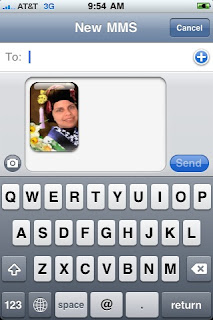
Forwarding MMS and SMS messages on the iPhone is very simple.
  1. Tap Edit at the top of your messaging screen.
  2. Select the MMS or SMS message you want to forward.
  3. Tab Forward.
  4. Enter the recipient's name or tab the to access your contacts.

  5. Tab Send.
As a little bonus, before you click Send you can click the camera and add or take more pictures and add it to your message.

What other tips do you want to share about MMS?


Share/Save/Bookmark


October 02, 2009

How can I stop e-mail notifications caused by Facebook comments?

Have you noticed that when ever you comment on a photo, link, notes, etc.... you start getting e-mail notifications whenever some one else comments on the same item. Isn't that annoying?
Sometimes the comments get interesting but sometimes it's just a pain. Do we really want to receive an e-mail notifications every time your friend's friends comment on something? Do we even know them most of the time? Probably not. The bad part is that these comments don't have an expiration date. You could have commented on a photo one year ago, and then Joe Smith comes along a year later and adds a comment, and guess what? You get a notification.
Well we also need to think about the social part of Facebook, isn't that why you signed up? Aren't you here to read the gossip? Hey I'm not here to judge. I'm here to give you answers, and here it goes.
Yes, you can stop receiving e-mail notifications on comments that are left after yours. The steps I'm going to give you are for Facebook applications and when I say Facebook applications I'm referring to the ones that are available on your profile when you sign up for Facebook such as Notes, Photos, Links..etc, not Games, drinks or gifts. These are third-party applications that you choose to add. Now of course since these applications are different, the settings are a little different but all in all, it's the same thing.
To change these settings:
1. Click Settings, and select Applications Settings.
2. Click Edit Settings located towards the right of the application name.
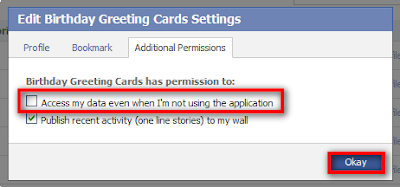
3. Click Additional Permissions tab.
4. Uncheck the settings of your choice and click Okay.
The highlighted ones are the recommended ones :O)
You can also change these settings by:
1. Clicking Settings.
2. Select Account Settings.
3. Click on Notifications tab.
And you will also find here these general Facebook e-mail notification settings.
Now just because you changed these settings doesn't mean you're not going to get notifications via Facebook. You can view these notifications by clicking the Notifications icon at the bottom of your page.
I know we're talking about e-mail notifications received caused by comments left but I'm going give you a two for one in this post and tell you what else you should be unchecking.
When you add a third-party application you are pretty much giving the third-party provider authorization to view your personal information. I don't know about you but I personally don't like that. My personal business is my personal business, and your is yours, right?
So here is your bonus and this applies to those fun applications that you chose to add.
1. Go back to Settings, and select Applications Settings.
2. From the Show: pull-down menu select Granted Additional Permissions.
Now only the applications you have granted additional permissions will display.
3. Click Edit Settings located towards the right of the application name.
4. Click Additional Permissions tab.
5. Uncheck Access my data even when I'm not using the application and click Okay.


Again, the settings can vary by application and some of them might now have these settings which is a good thing but if they do, uncheck it. Some of these application also have a Send me e-mails settings which you probably want to uncheck as well to avoid notifications when they add a new gift :O)
Did this post help you?


Share/Save/Bookmark

How can I clean up my Facebook Home Page?

As mentioned in the Home Page blog post "What is up with the Home page?", the Home Page now shows news not only from your friends but also from groups, and of course those annoying applications. So how do you limit the information shown on your Home Page?

Before I show you how to do it I first want to say that if you see your name in any image, please do not take offense. These are only images used to illustrate the process and there is no meaning behind it.

So how can you clean up your Home Page to only show what's important to you?

If it's an application you are trying to hide mouseover the right top corner of the news item and click Hide and then select Hide + the application name.

Now in case you want to hide news from a group or friend, you can follow the same steps but select Hide + Friend's name. Right after you hide the news item you will have the option to click on Undo in case you did something by accident.

If you ever decide you want to show those news items again on your Home Page, all you have to do is:

1. Click on Edit Options at the bottom of your Home Page.
2. Click on "Friends, Public Profiles or Applications" depending on what you are trying to edit. In this example I'm selecting Applications.
3. Click Add to News Feed button next to the application (or friend's name).
4. Click Close.

You can also opt to view the hidden stories by clicking on Show xx Hidden Posts at the bottom of the Home Page.

Well hope this helps with you.


October 01, 2009

How can I accept or ignore all Facebook friend request at once?


Yes and No :O(

Unfortunately you can't accept all friend requests at once but you can ignore all of them. I think the reason behind this is because of the privacy settings everyone has on their profile. You might not want all these friends to have the same access to your profile therefore you need to add them one by one. If you think about it, it makes sense, right?

To ignore all friend request:

1. Click on x friend requests (x=number of friend request) or See All link on the top right corner of the Home page.
2. Click on Ignore All link on the top right corner.
By the way if you don't see anything happen when you click the link make sure to either hold down the CTRL key as you click or allow pop-up blockers.
3. Checkmark the box next to Friend requests (x), and then click Ignore these requests.
4. Click Okay.

In step 3 you can also see other requests sent to you by your friends and groups so just make sure you checkmark the correct thing.

Hope this helps!

September 22, 2009

Remember that text from last night?


If you think FML is funny then you haven't laughed hard enough yet. Now there is Texts from last night where users can send text messages to the site by using their area code and others can reply. The number you see before the text is the area code where the text message came from and if you see another text message right below it, it's because some one has responded to it.

You can leave a comment by clicking on reply or rate the messages as good night or bad night.

Here are a couple of them to give you a sample.
(775): I was too high to figure out which of the three doors would lead me to my classroom, so i sat down in the middle of the hallway and ate a twinkie.
(248): Is your delayed response due to the massive amount of judging going on?
(802): My social work teacher just told our class about her bicurios adventures in college
(516): is she hot?
(802): She is now
(702): what made you think it was a good idea to trust the girl that hides tequila in her backpack?
(204): My cousin's wedding had personal beer funnels for each table and a drinking game against the bride and groom. im sorry for ever calling you white trash
(504): She looks like Sash Grey but sounds like Fran Drescher. Advise.
(858): This concert is like a reunion of all my bad sex.
(203): a girl in my class is on a twilight fan site and running her fingers on the screen as edwards body comes up.


Oh and there is an app for this too!!! It's $0.99 for those that would like to know and you can downlad it here Texts From Last Night.

Just remember, you might forget the text messages you send but will we?


September 16, 2009

How do I tag friends on my Facebook status?

This new feature was just rolled out. You can now tag your friend in your status by adding the @ in front of their name. As soon as you do that, you'll see a list of friends with similar names displayed and all you have to do is select your friend from the list.

After you select your friend it will add their name highlighed in blue as a hyperlink and the @ symbol dissapears.

You can also tag more than one person by just adding again the @ in front of the other name.


Share/Save/Bookmark

September 15, 2009

How NOT to use PowerPoint!

I can see this being used at the beginning of a PowerPoint class, enjoy.


Agree with Don. PowerPoint should be used to give your lecture a visual effect be it a class you're teaching or a presentation to your management team.

Keep it short, to the point, and use images that will add to your lecture.

How do you use PowerPoint?